Adventori
You can use Adventori to make your Collective Audience™ creative texts, images & links dynamic.
Activate the Adventori integration
Click on + Add integration
Pick Adventori
Check Enable
Save
Customize a Collective Audience™ creative using Adventori
With your integration activated, go to the creative you want customized.
Click the Set integration up button
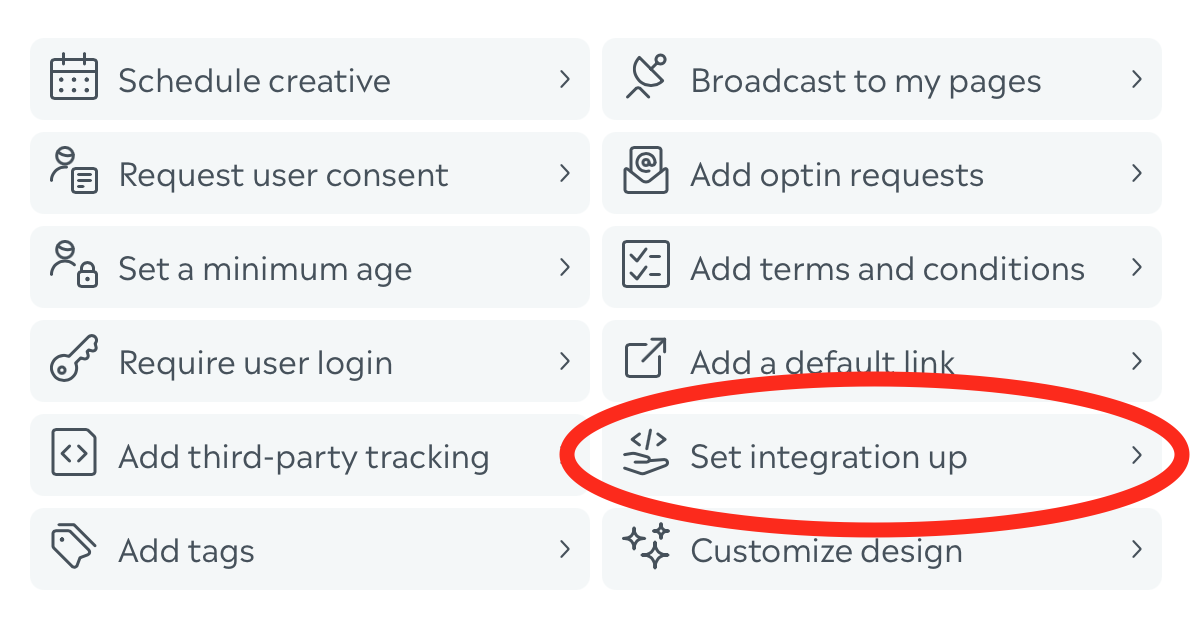
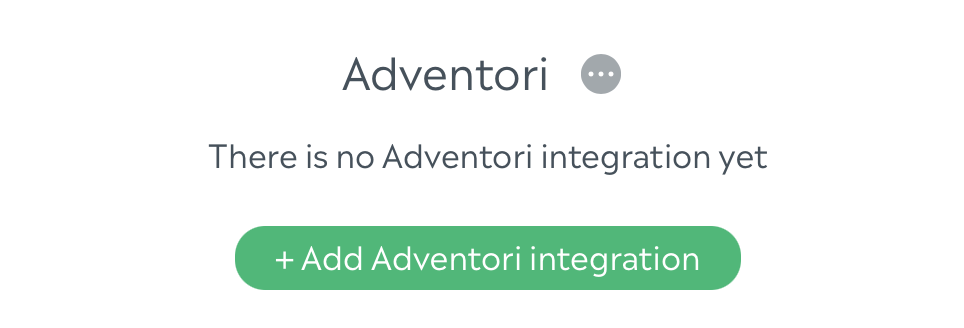
On the box that just appeared, click on Add Adventori integration
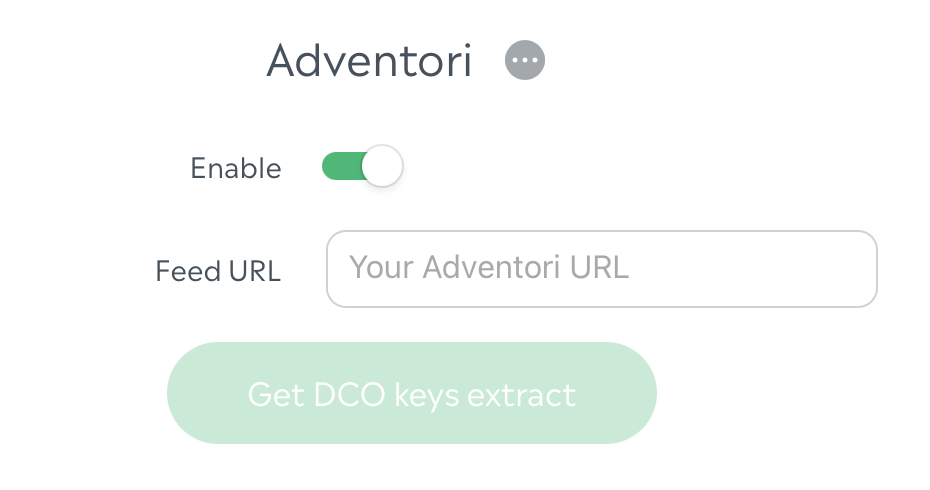
Check the Enable checkbox, that will activate the correct mode
In your creative, you can configure:
Texts & Exit links:

There is a special syntax to enable dynamisation:
DCO_{{ID}}|DEFAULT_VALUEFor instance, if I have a dynamic field identified by
123that should default toHello world!:
DCO_123|Hello world!Media:
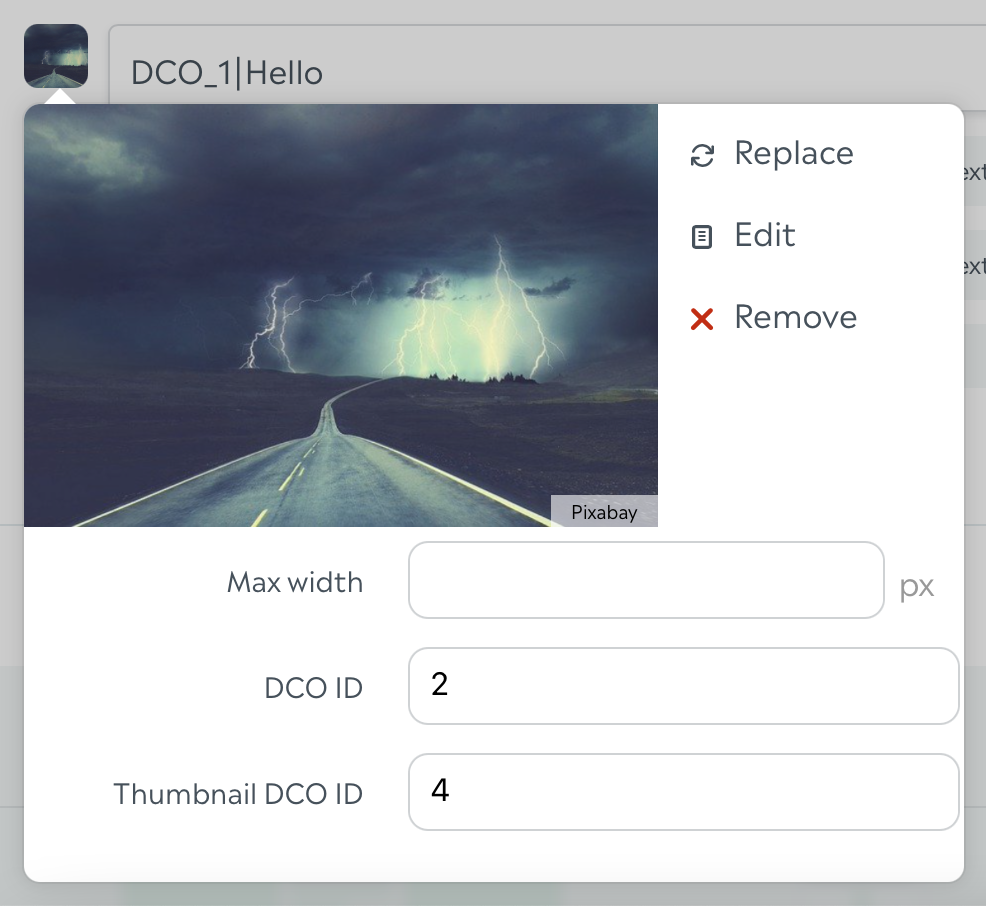
For media, you can find the DCO ID and Thumbnail DCO ID in the dropdown once you've uploaded your default media.
When you're finished configuring your creative, save your creative, and click the Get DCO keys extract button.
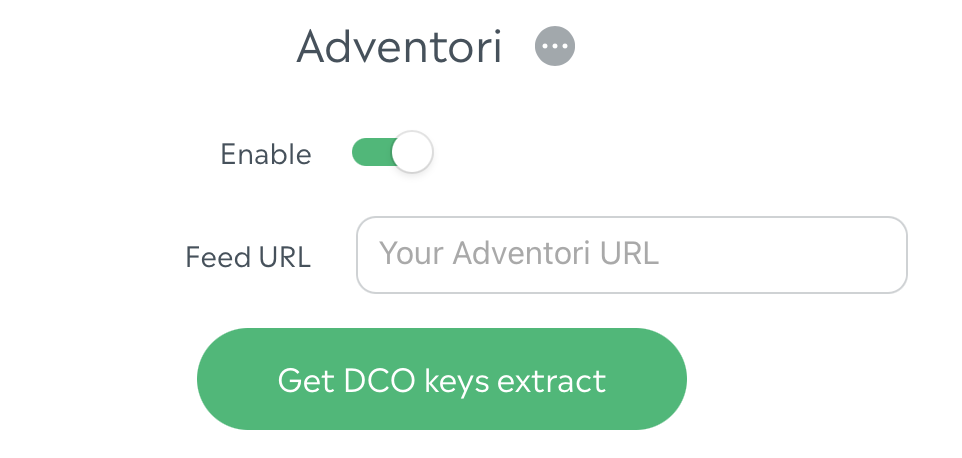
This extract will give you the mapping to send to Adventori so that they can setup your feed.
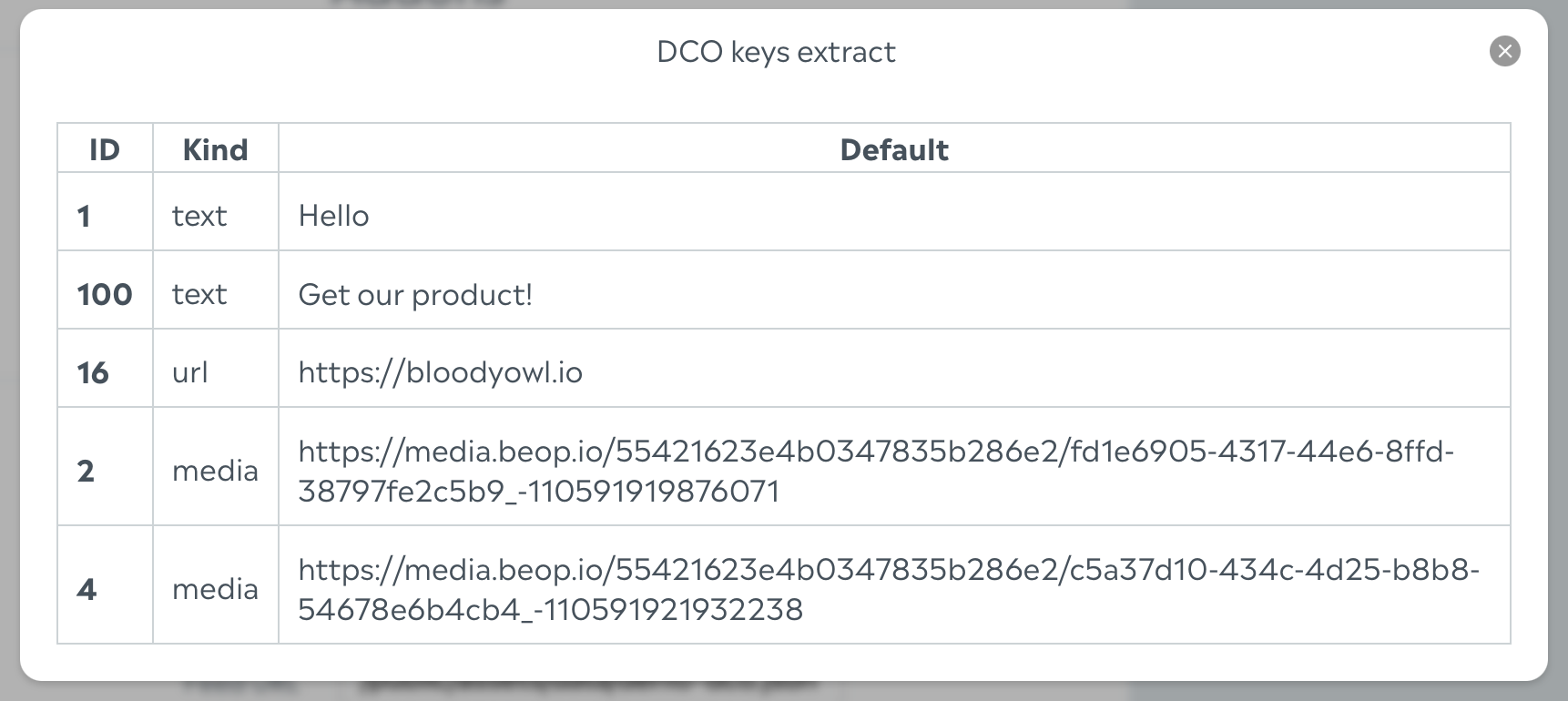
Once you have your feed URL, paste it in the Feed URL in your creative, save and you're ready to go!