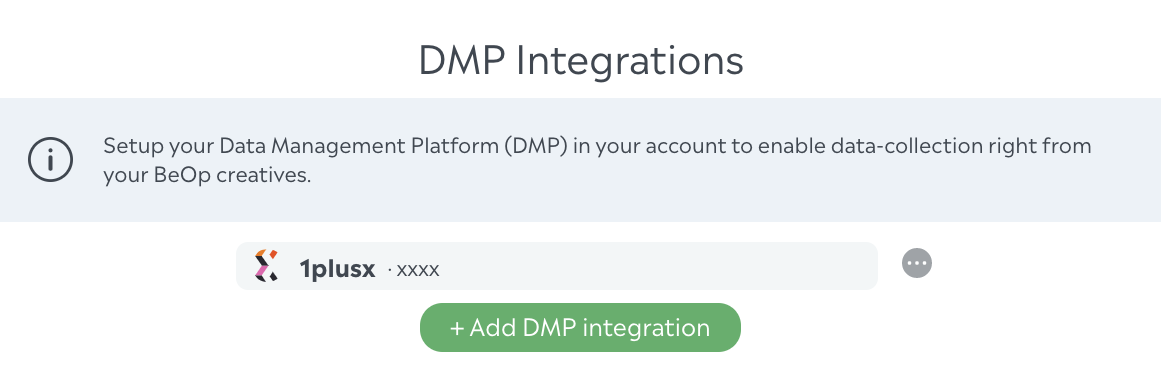
DMP configuration
Collective Audience™ allows you to integrate Data Management Platforms, currently:
Weborama
Mediarithmics
Permutive
Audigent
Piano
Configurations
In your Settings, in the Account section, click on Integrations in the menu on the left.
Click on "Add integration", then on Weborama, Mediarithmics, Permutive, Audigent, Adventori, Piano or 1plusx.
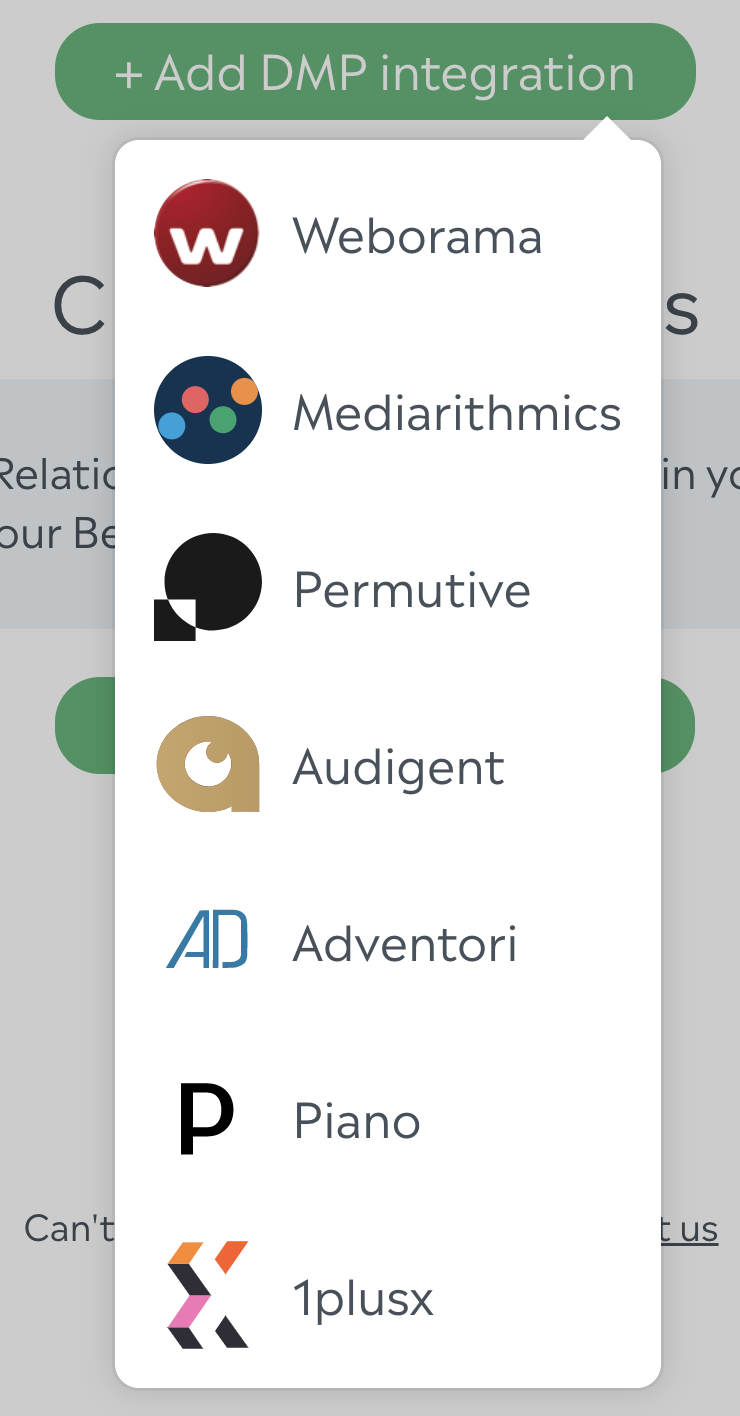
Weborama
Add the ID you were provided with, then click on enter/return. A list appears with a list of of topics related to that id. Toggle to select or unselect the relevant topics.
If your Weborama username (say, "john-doe") differs from your Collective Audience™ username (say, "JohnDoe"), enter your Weborama username in the Brand name field.
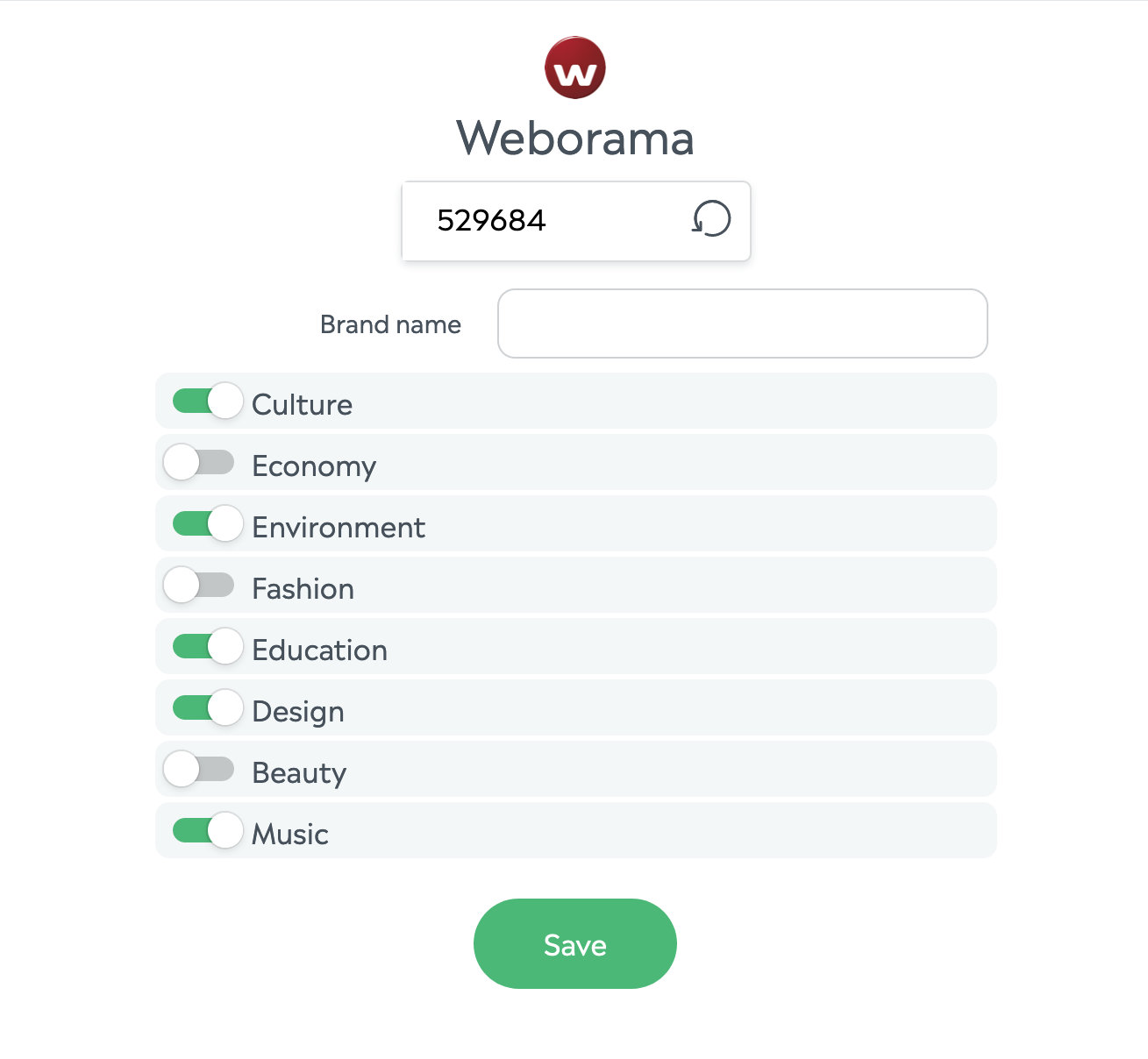
Save to return to the list of integrations. Save again to save your new settings.
Mediarithmics
Add the DataMart ID you were provided with, then click on enter/return. You then receive a list of tokens (with their IDs).
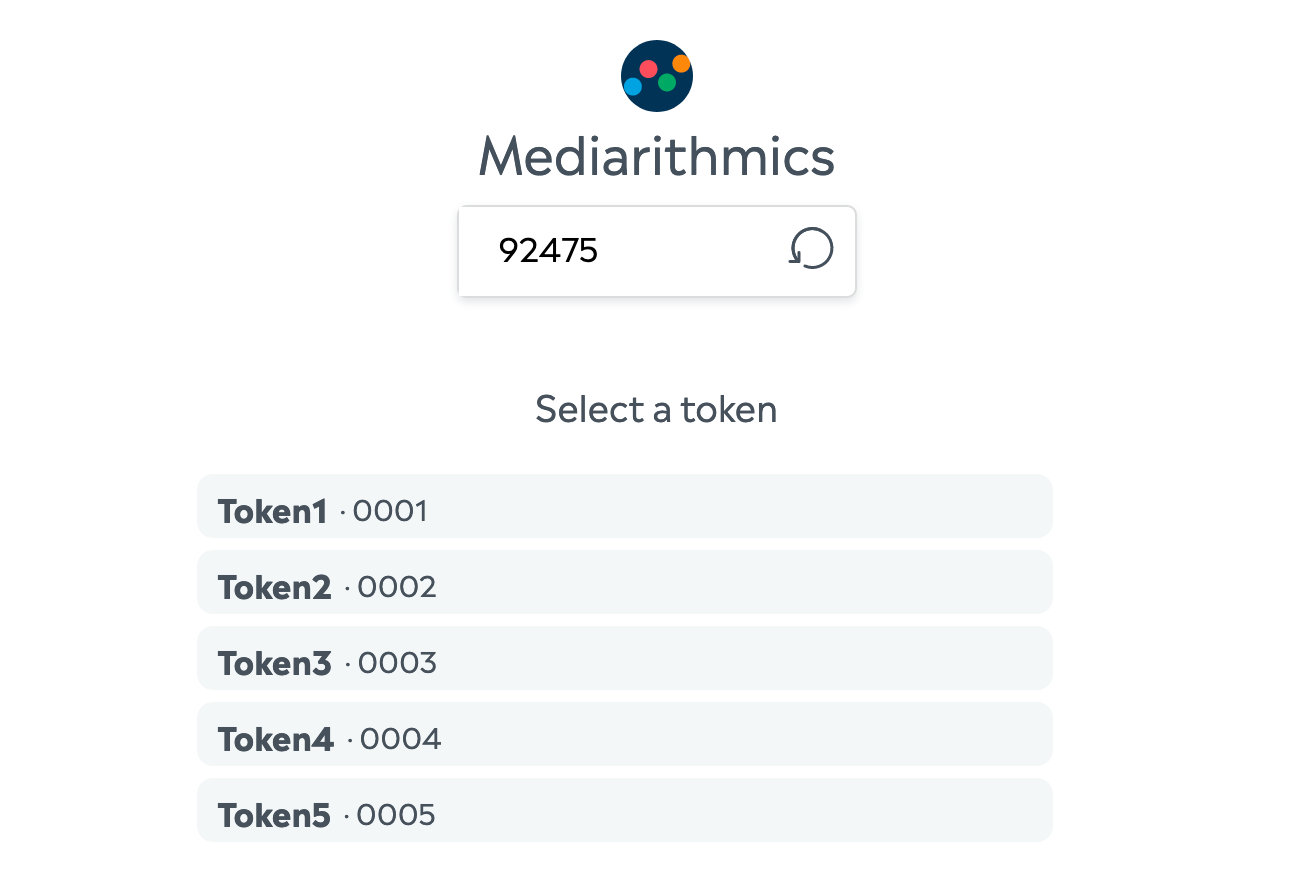
Click on the selected token: now you can type your topics in. If you have a source file with a list of topics, one per line, you may also copy that source and paste it in the input field.
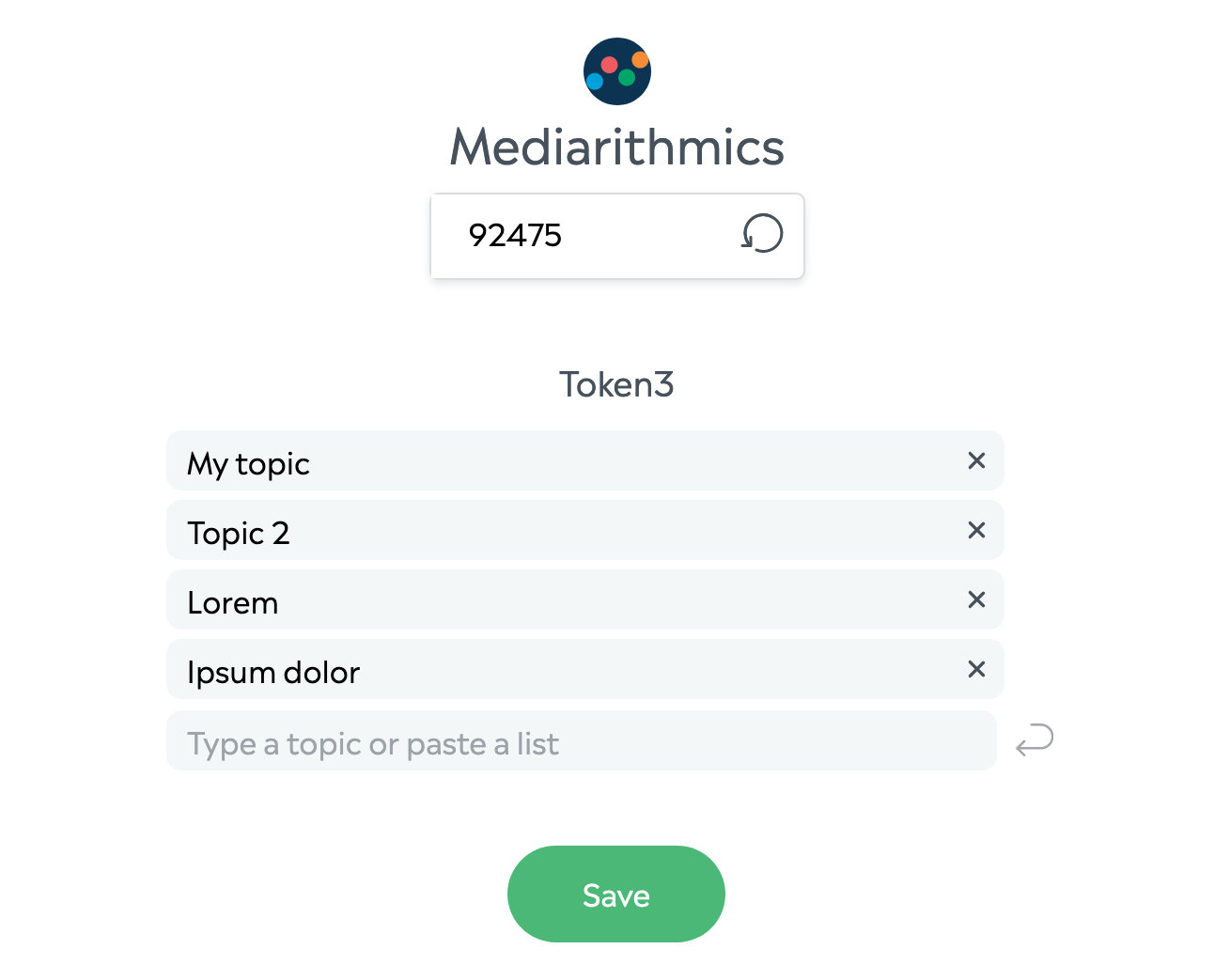
Save to come back to the list of integrations. Save again to save your new settings.
Permutive
Add your Permutive Project ID.
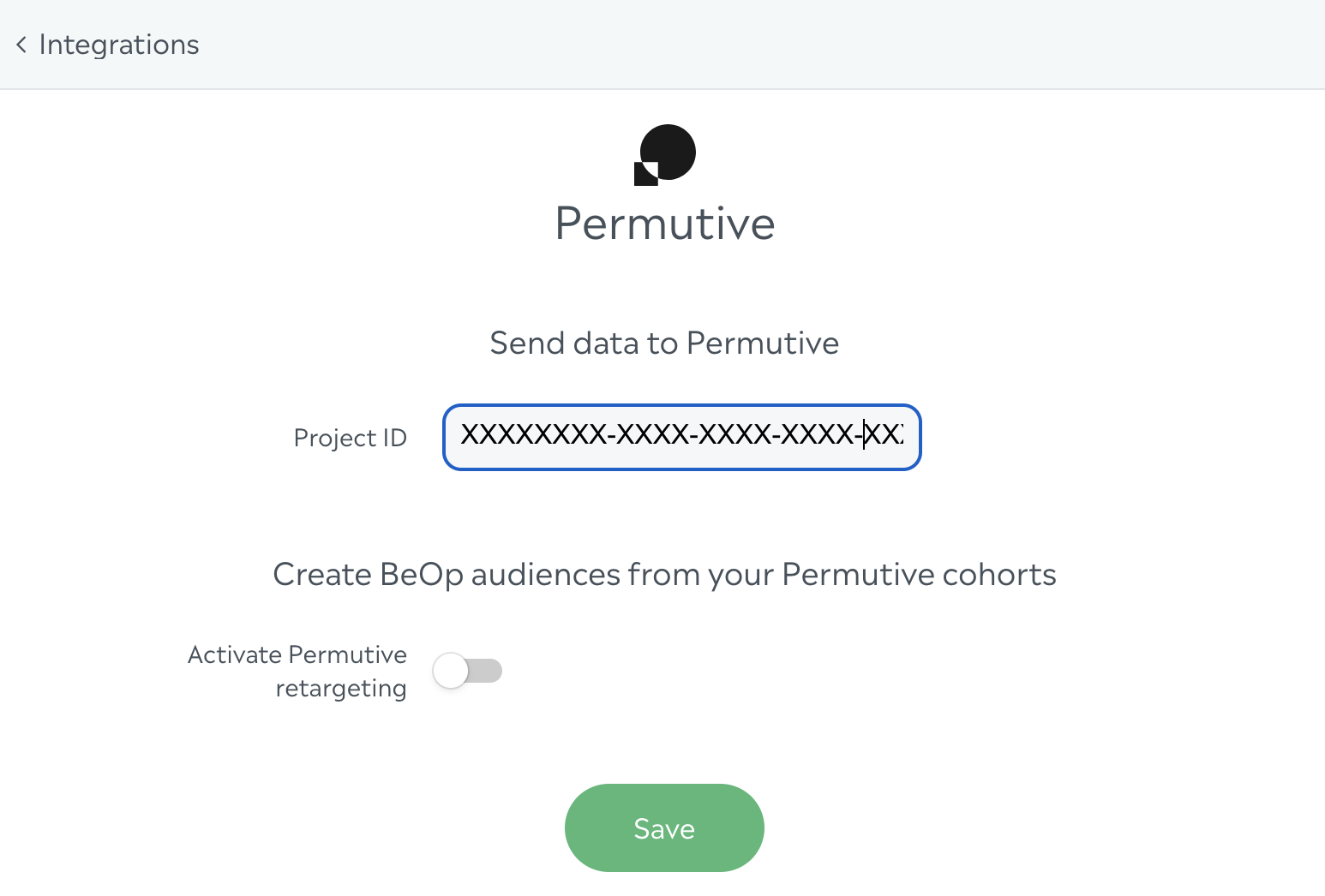
Then press "Save", and you should see the following screen:
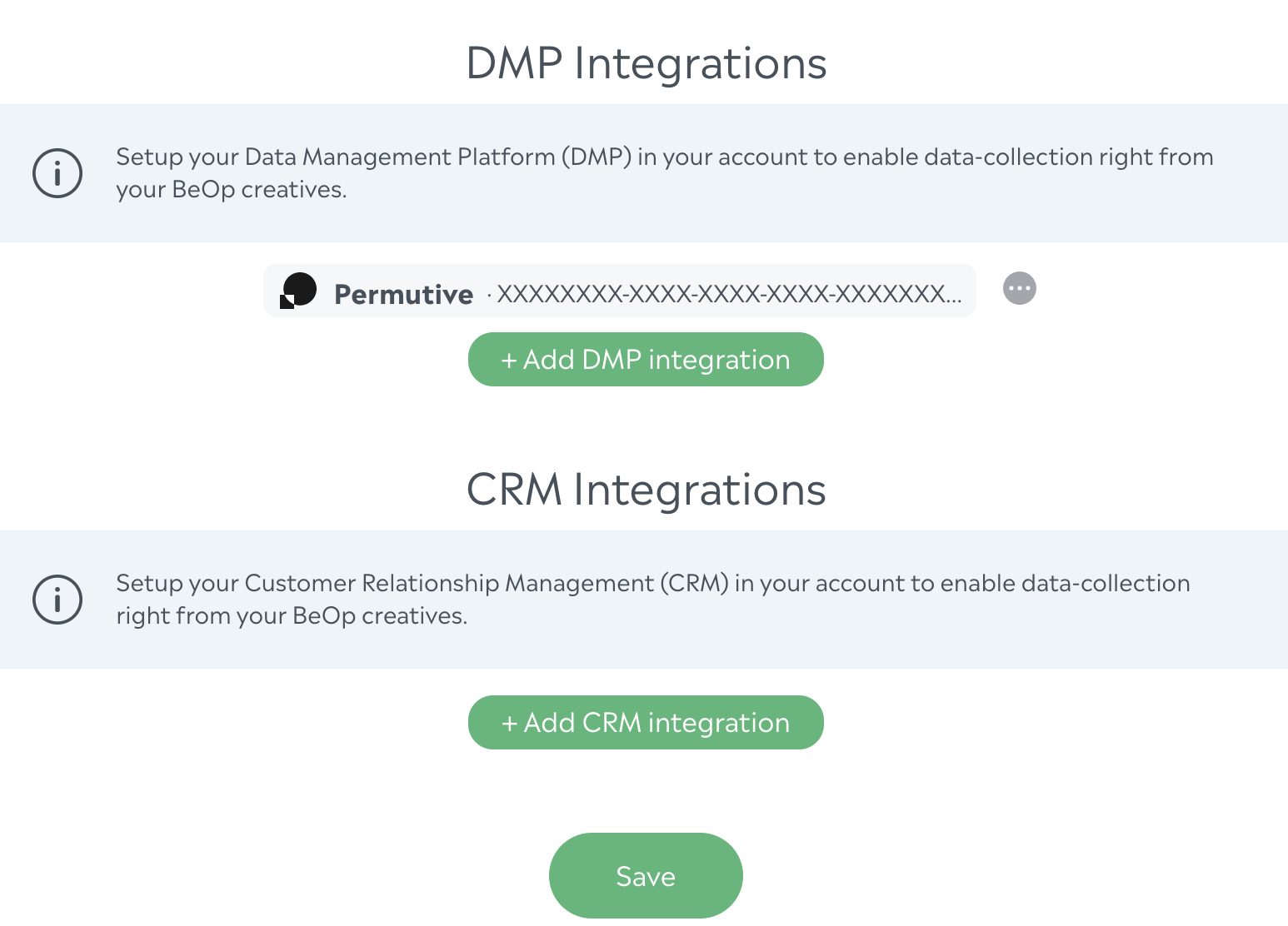
Press "Save" and you're good to go!
Permutive retargeting
For retargeting purposes using Permutive, you may need to provide a private API key from Permutive to have a full automatized connection. Please follow these screenshots to get that API key in your Permutive platform.
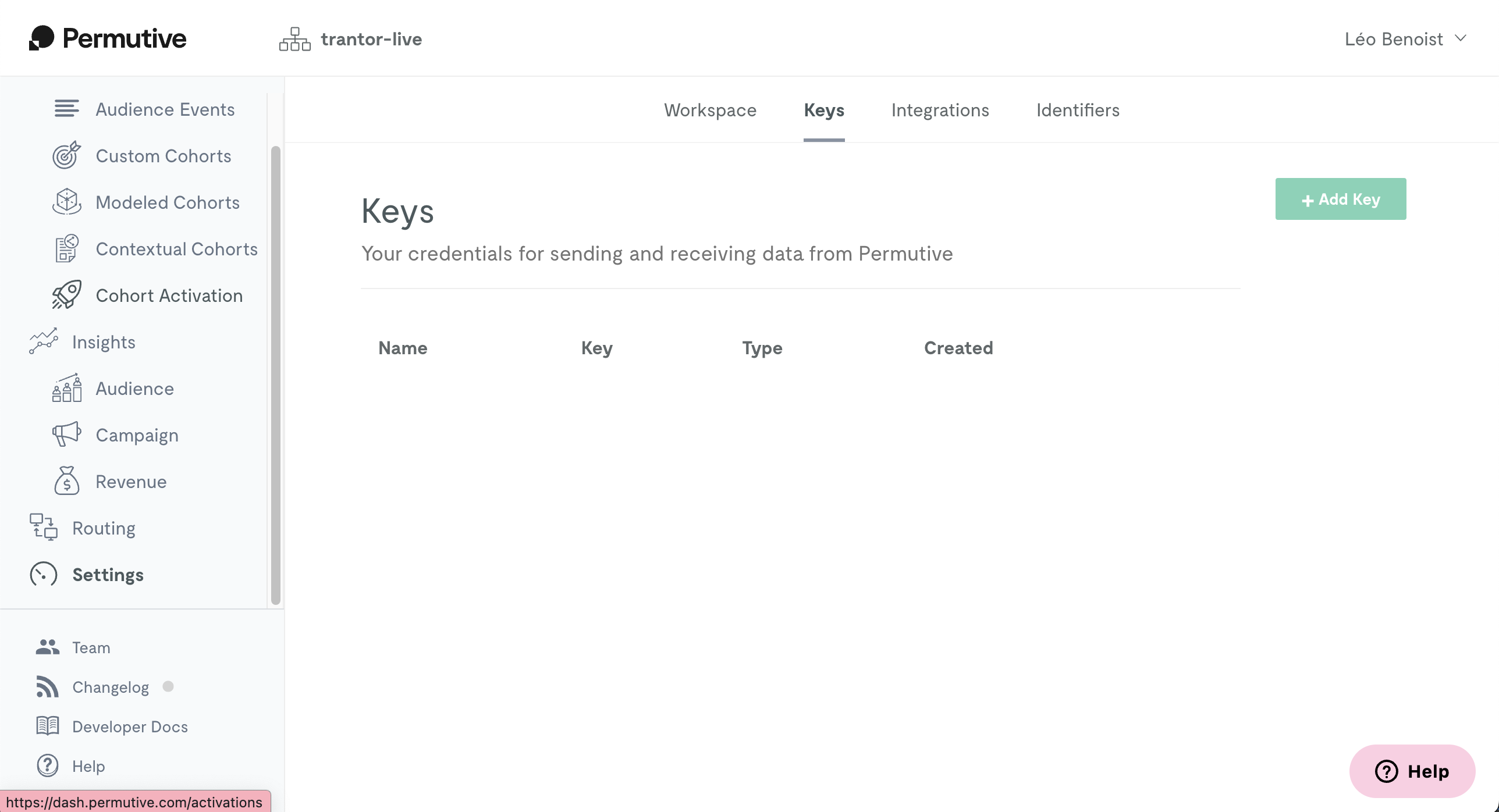
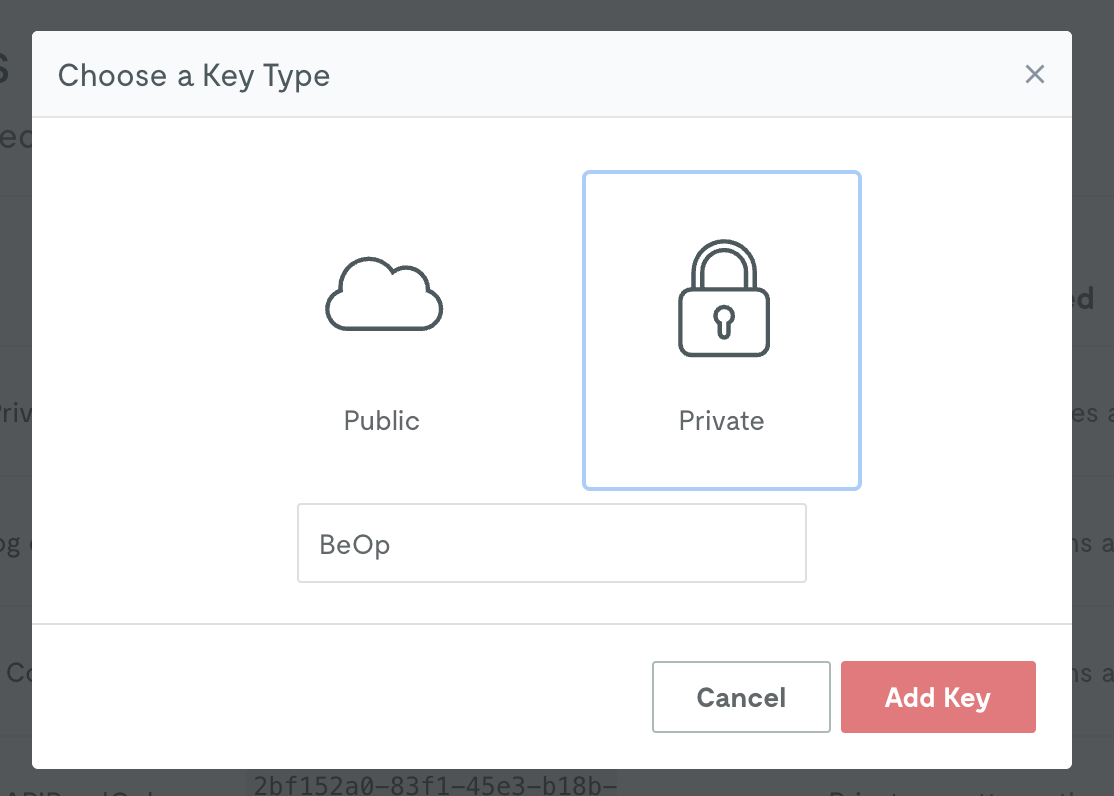
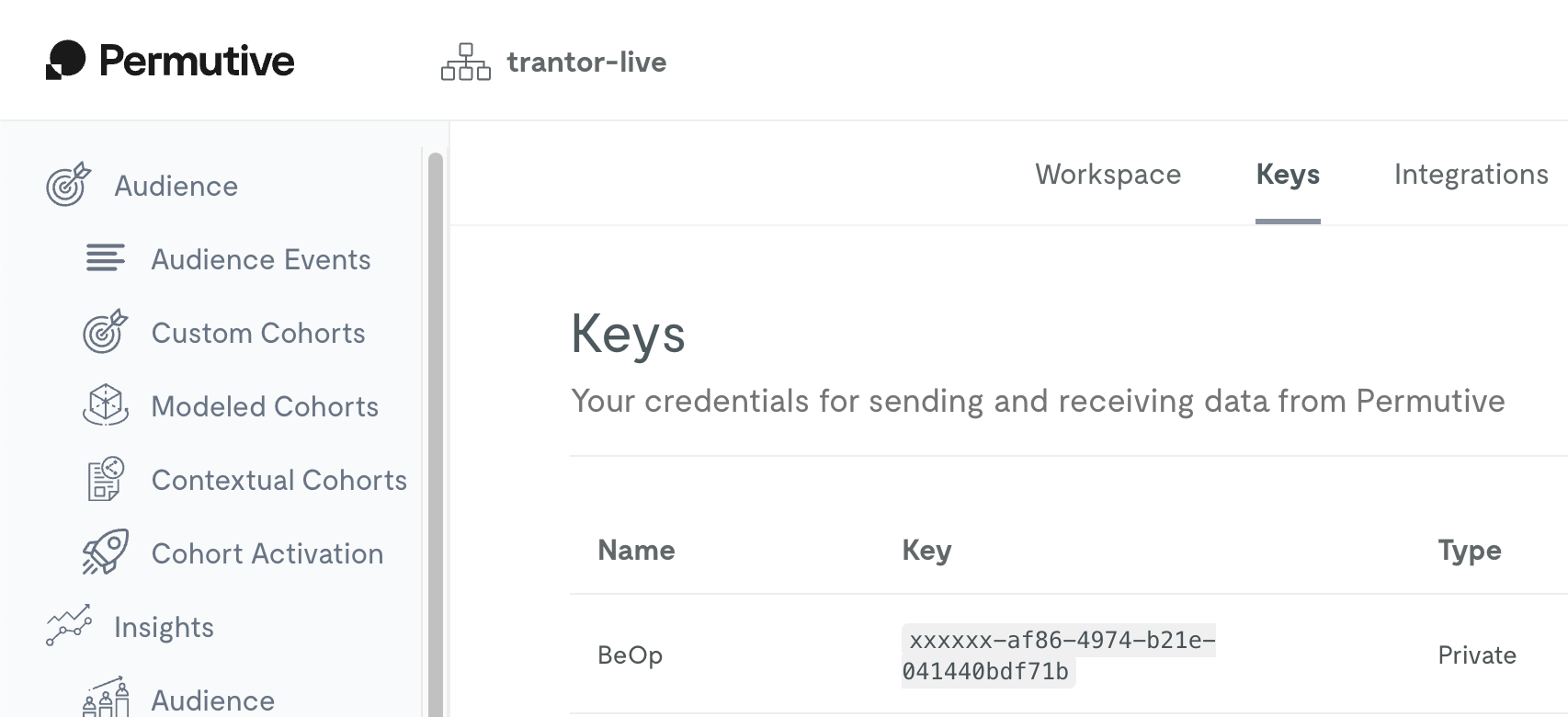
On your Collective Audience™ platform, in the Permutive settings, enable "Activate Permutive retargeting".
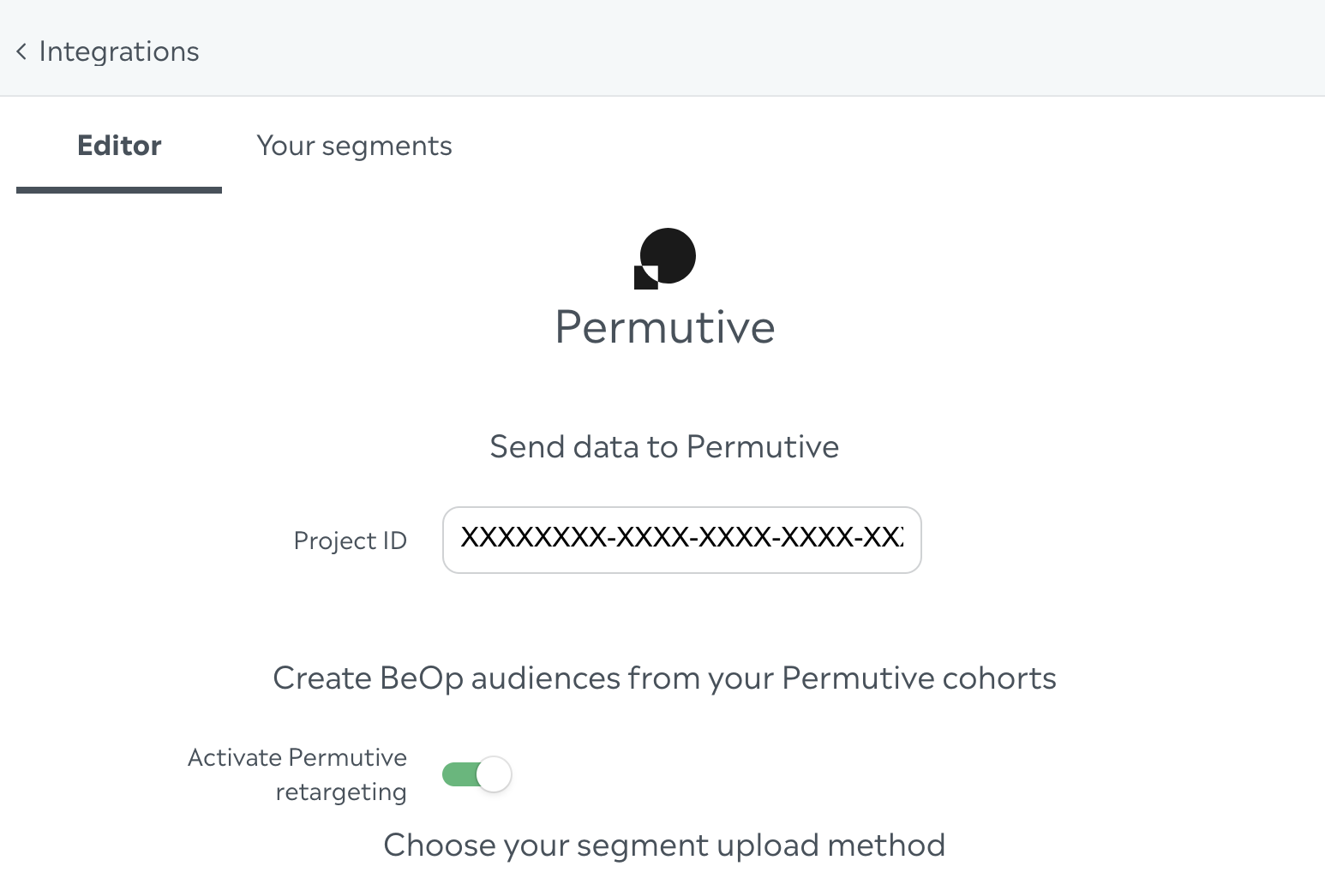
Then chose "Permutive API" and fill the form with the API key you just generated.
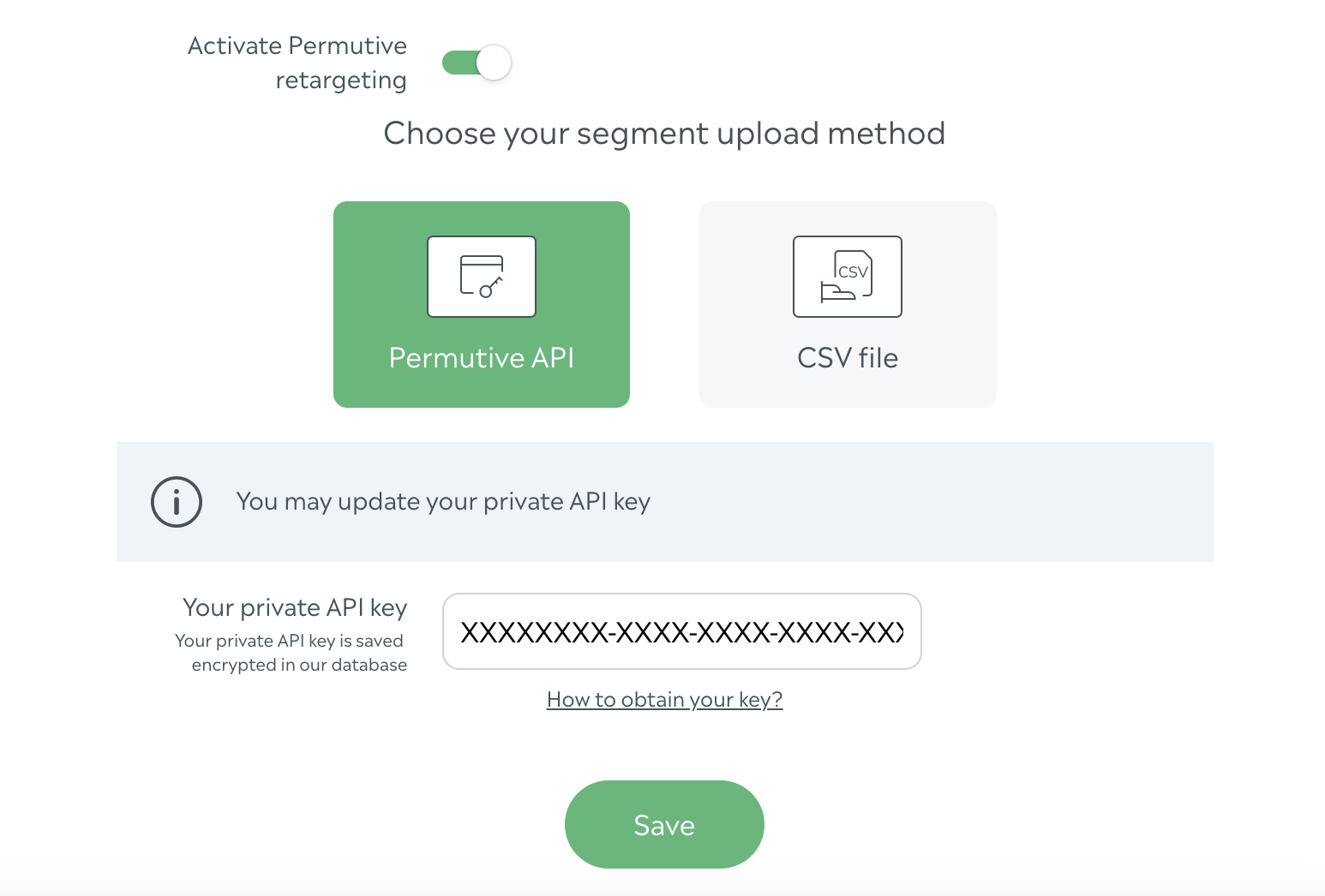
Press "Save" again and you're good to go!
Audigent
Add your Audigent Partner ID.
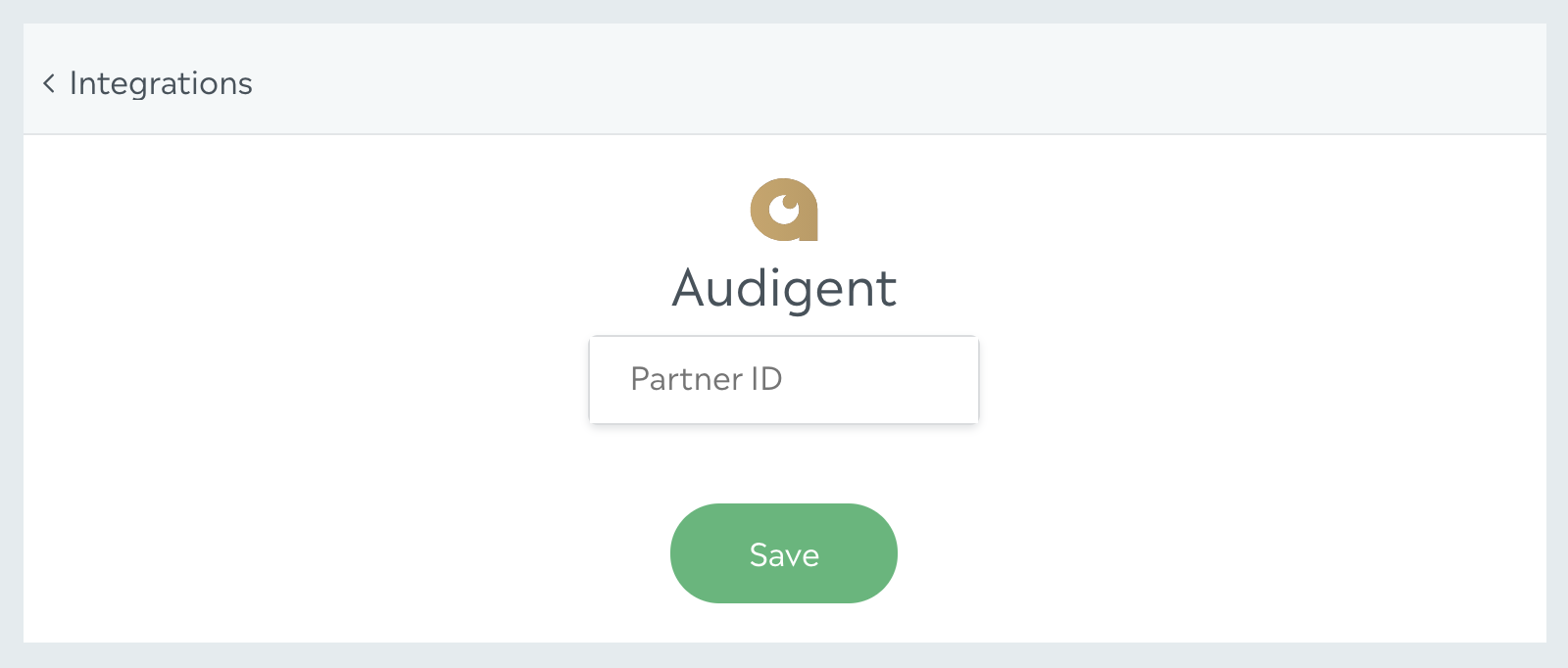
Then press "Save", and you should see the following screen:
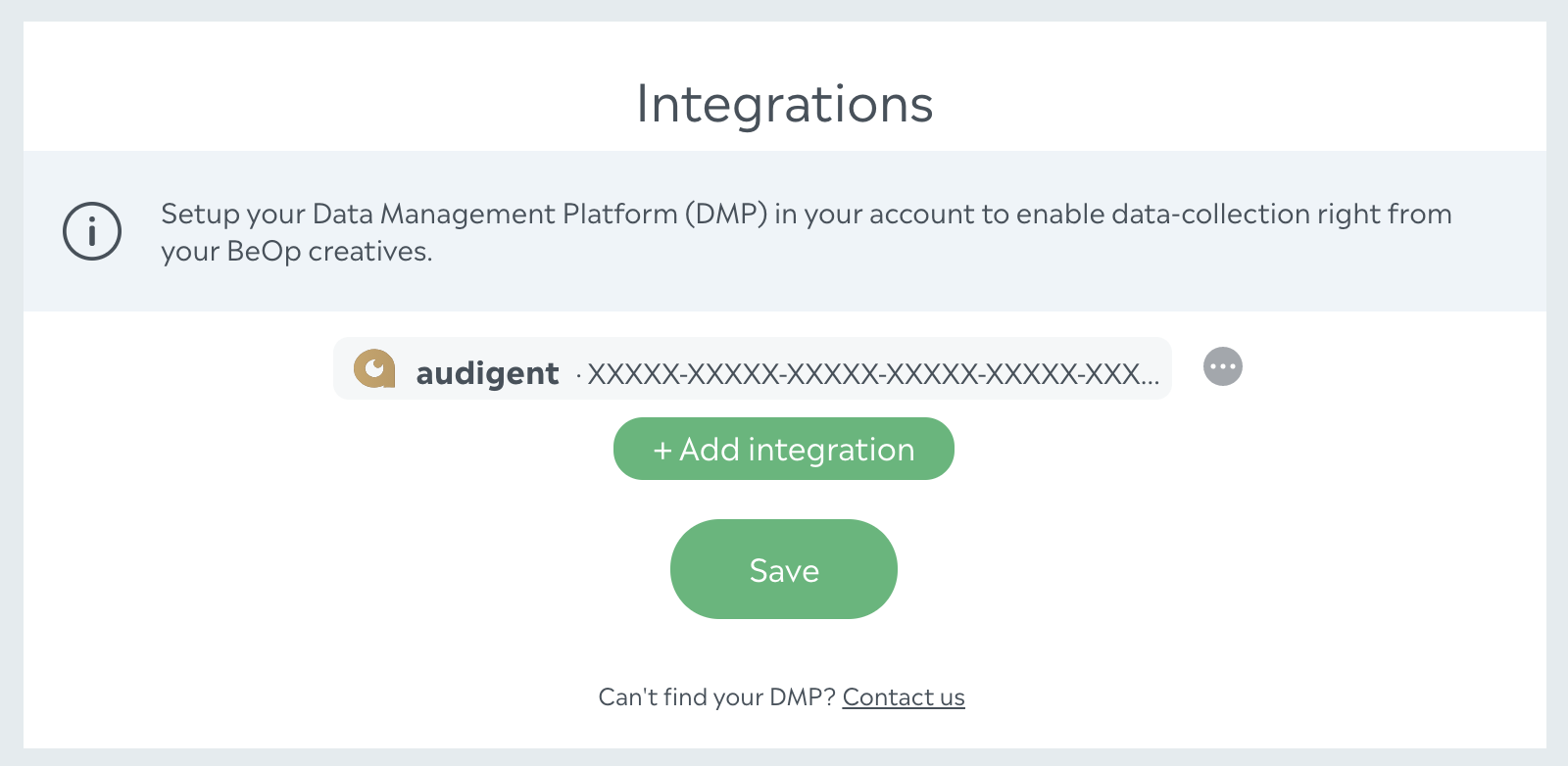
Press "Save" and you're good to go!
Piano (CXense)
Add your Piano Persisted Query ID.
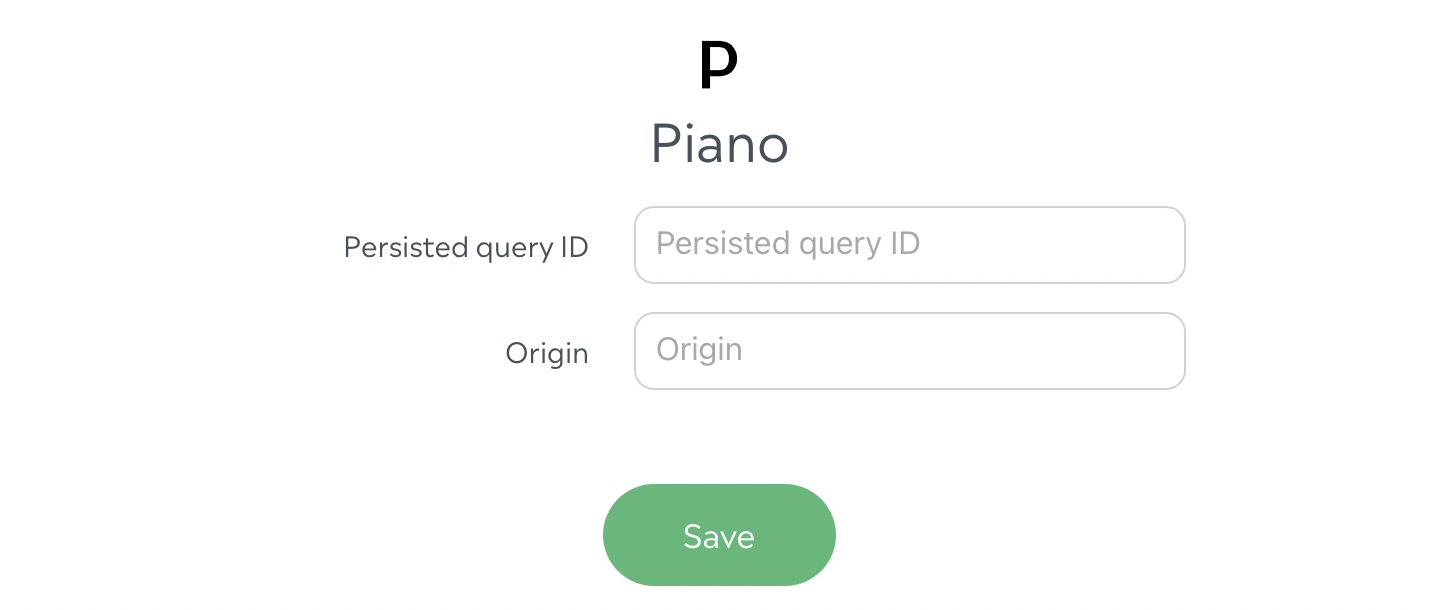
Then press "Save", and you should see the following screen:
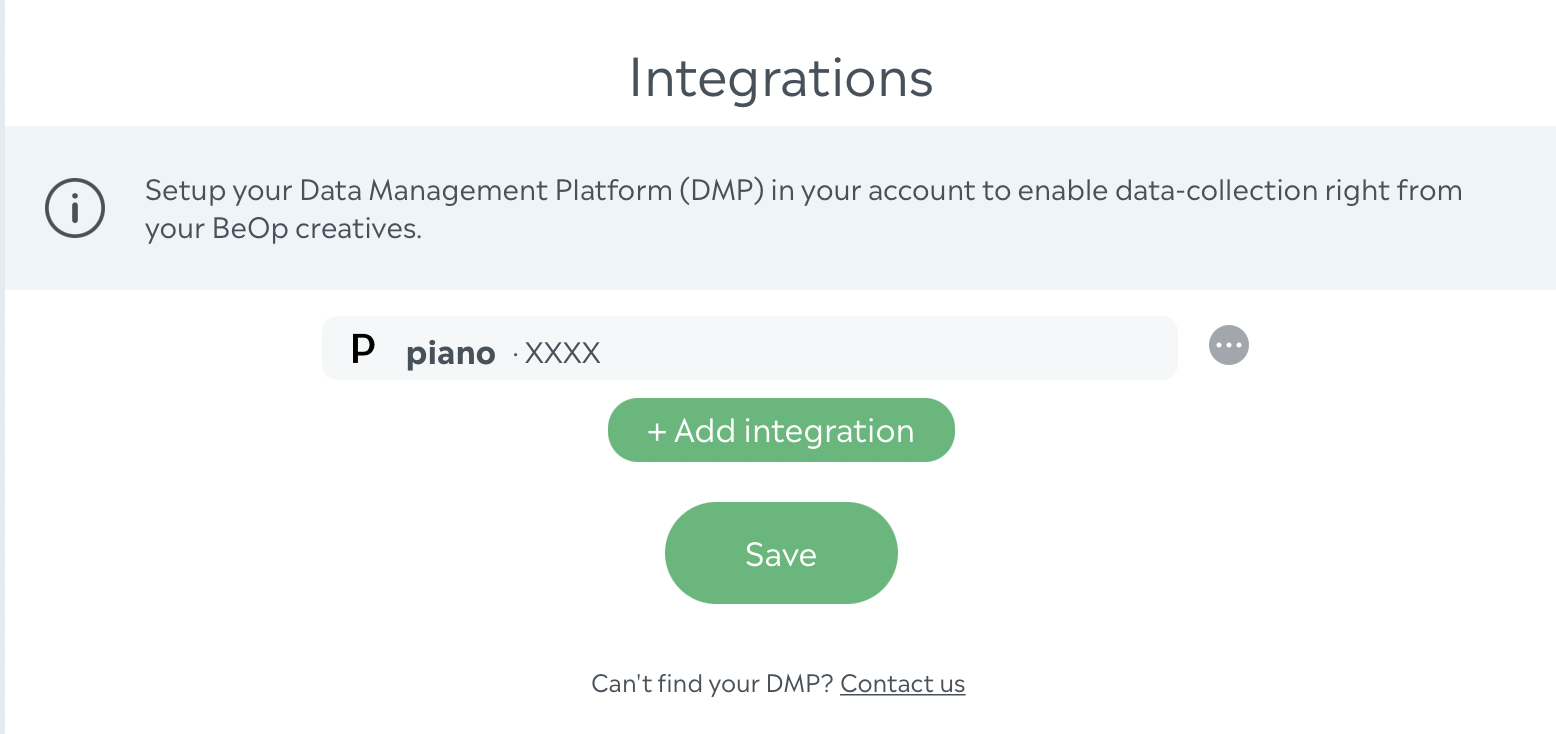
Press "Save" and you're good to go!
1plusx
Add your 1plusx client name.
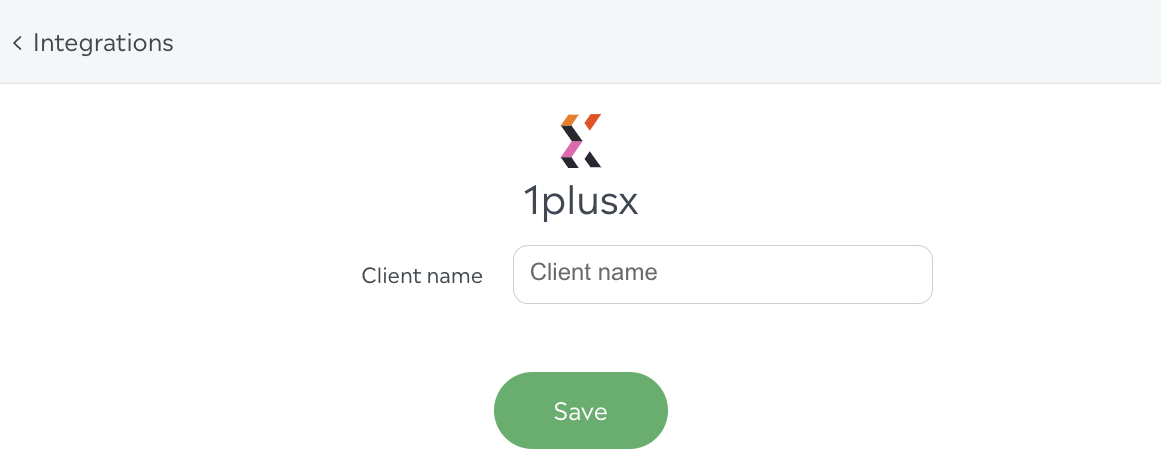
Then press "Save", and you should see the following screen: