Google Cloud Storage
In order to let Collective Audience™ push you periodic reports in your Google Cloud Storage (GCS) bucket, you need to create a Service Accounts for us and configure the access to your bucket.
Buckets are the basic containers that hold your data. Everything that you store in GCS must be contained in a bucket. You can use buckets to organize your data and control access to your data.
A Service Account is a special type of Google account intended to represent a non-human user that needs to authenticate and be authorized to access data in Google APIs. Below are the steps to create and use a Service Account.
Step 1 — Create a Service Account and its private key
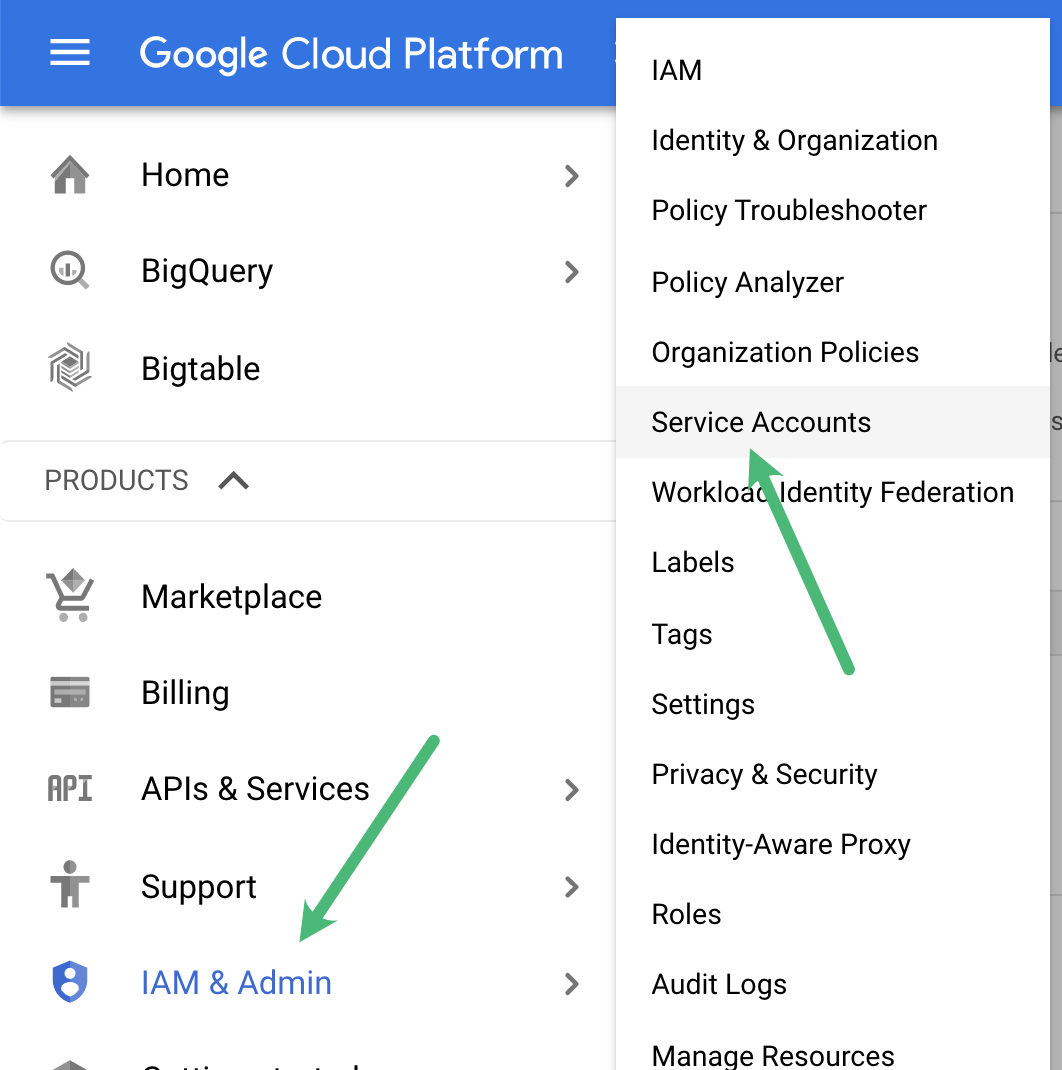
In the Google Cloud platform console, go to "IAM & Admin" and then the Service Accounts page.
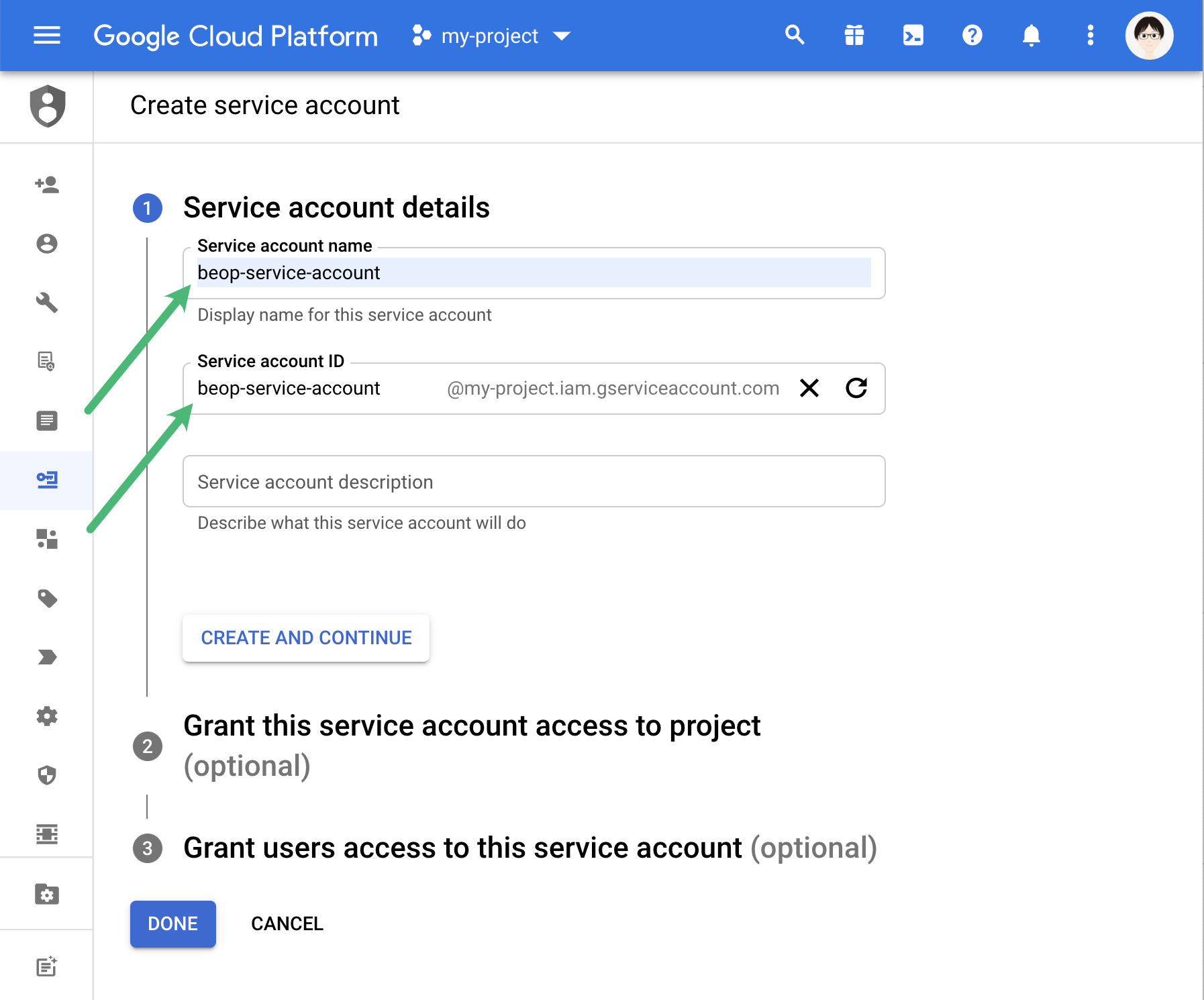
Fill in the name, for instance caud-service-account. Remember the email generated for you, you’ll need it later (step 2b).
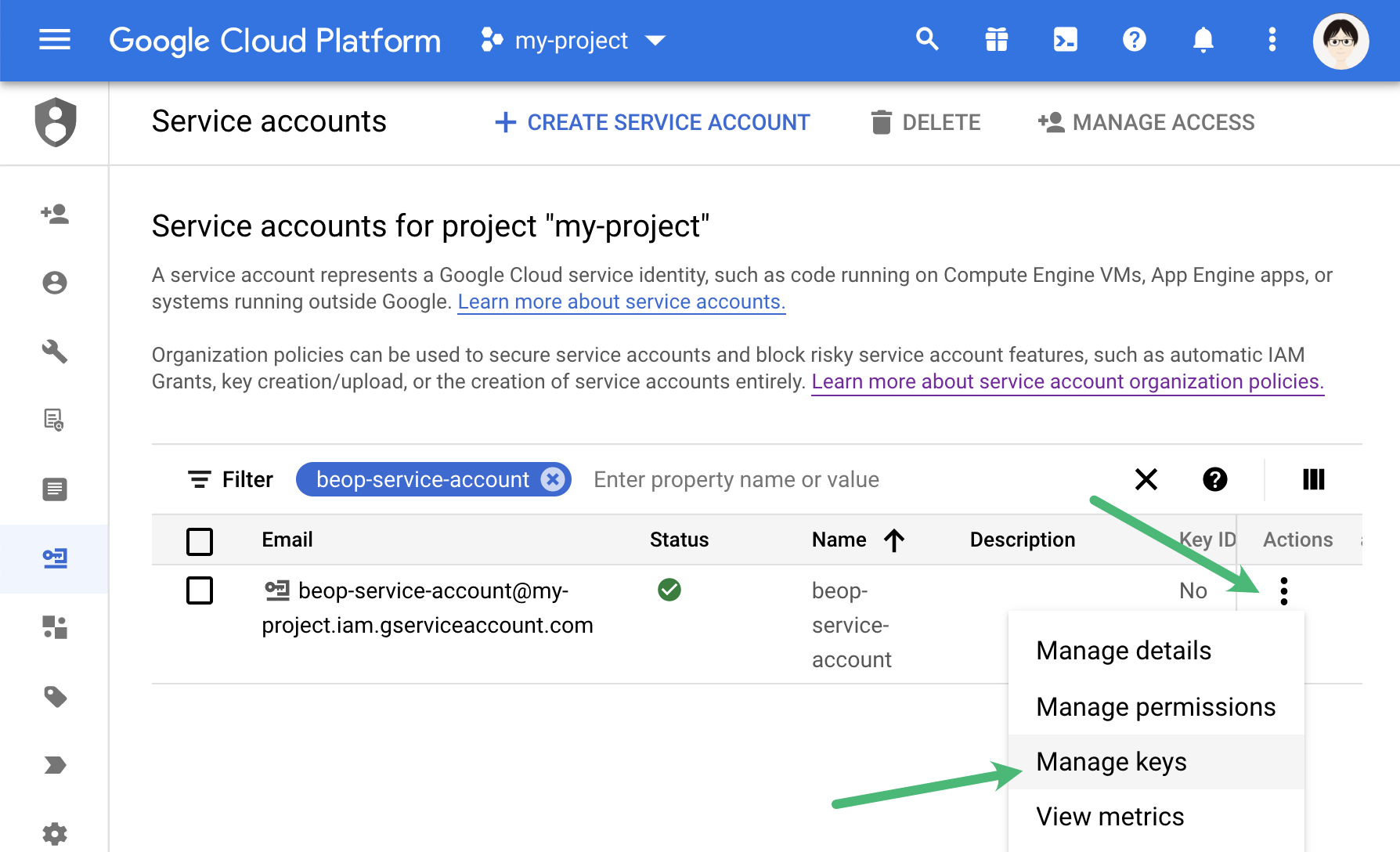
On the account we’ve just created in the list of Service Accounts, select “Manage keys” in the Actions menu.
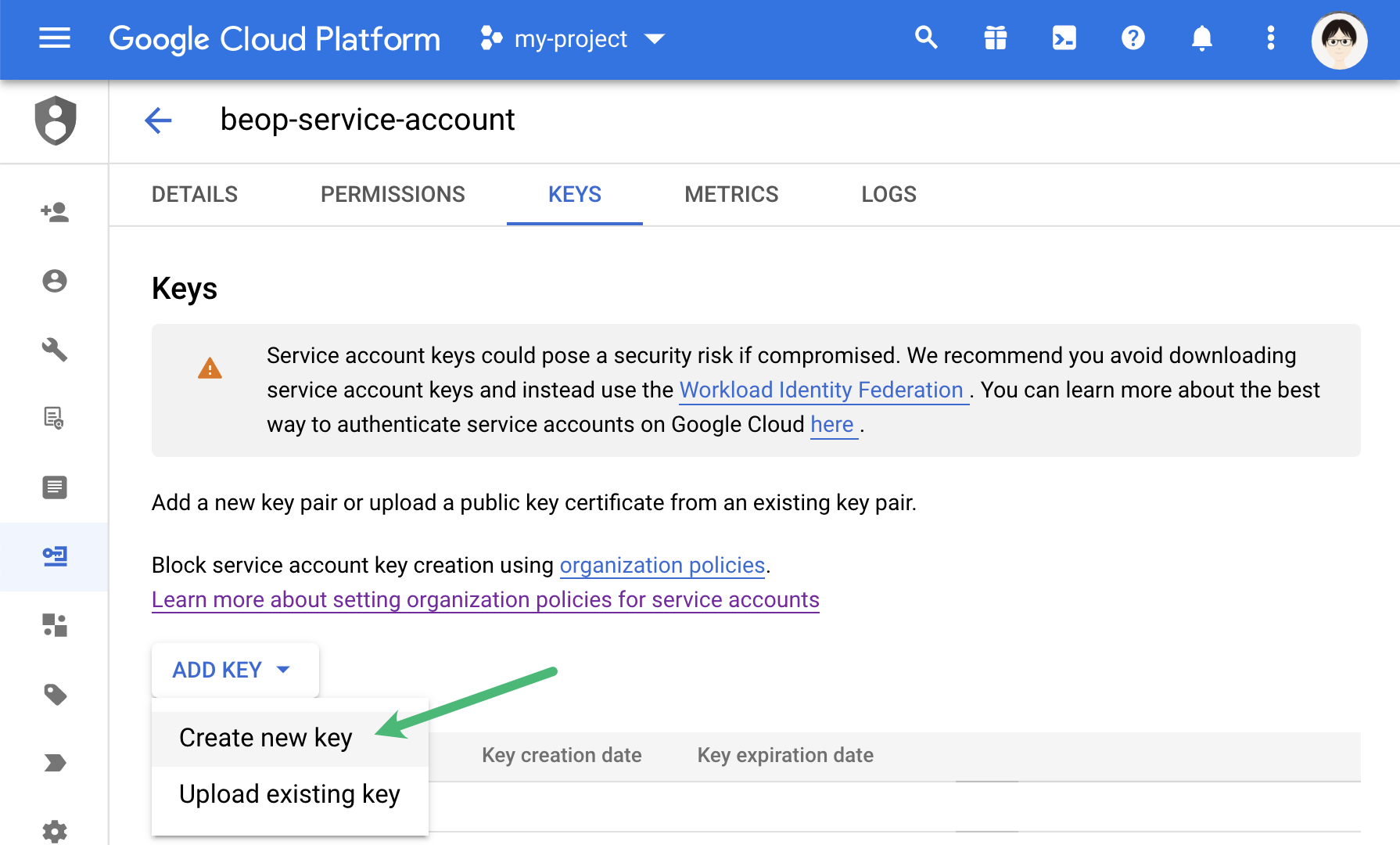
In the “add key” select button, select “Create new key”
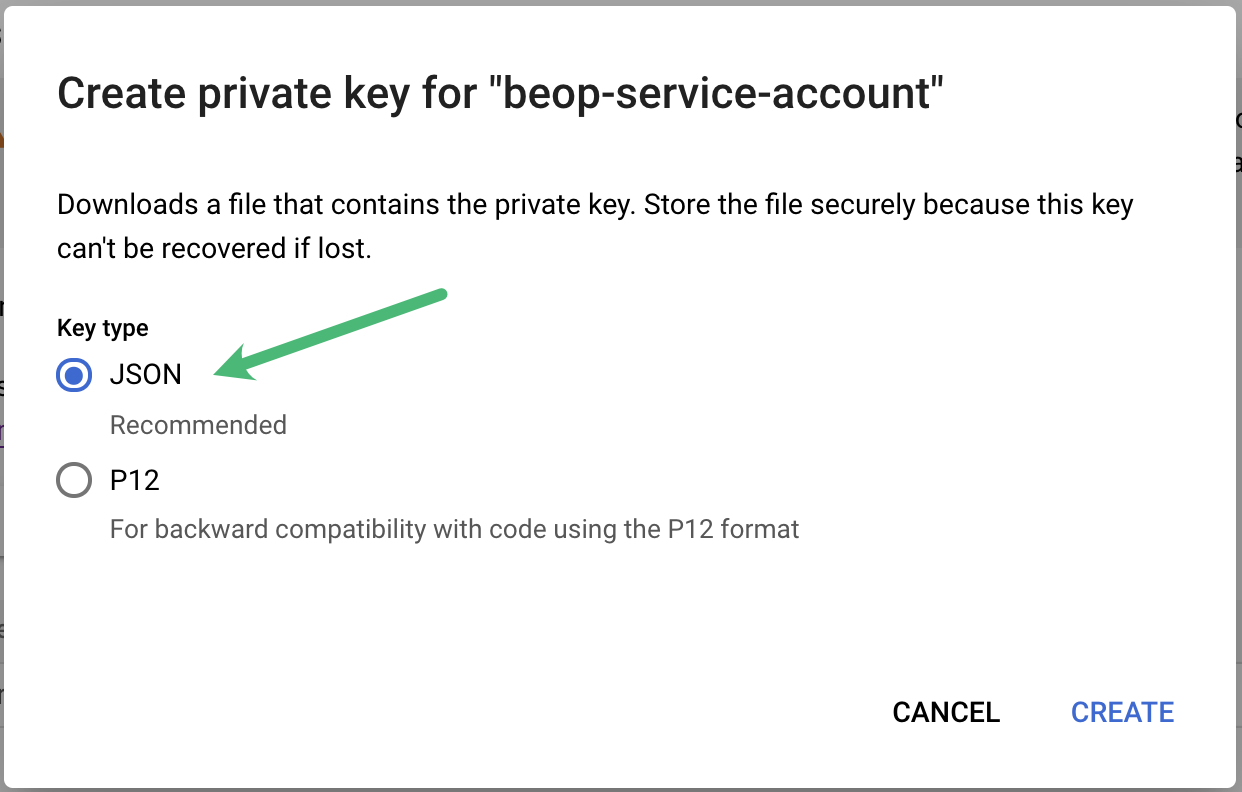
Select the JSON key type and download the key, it’s the one you’ll specify in the Collective Audience™ dashboard
Step 2 — Set permissions
We assume you’ve already created a storage bucket to contain the future Collective Audience™ exports (for instance, caud-exports). If you need help to create one, Google has a help page.
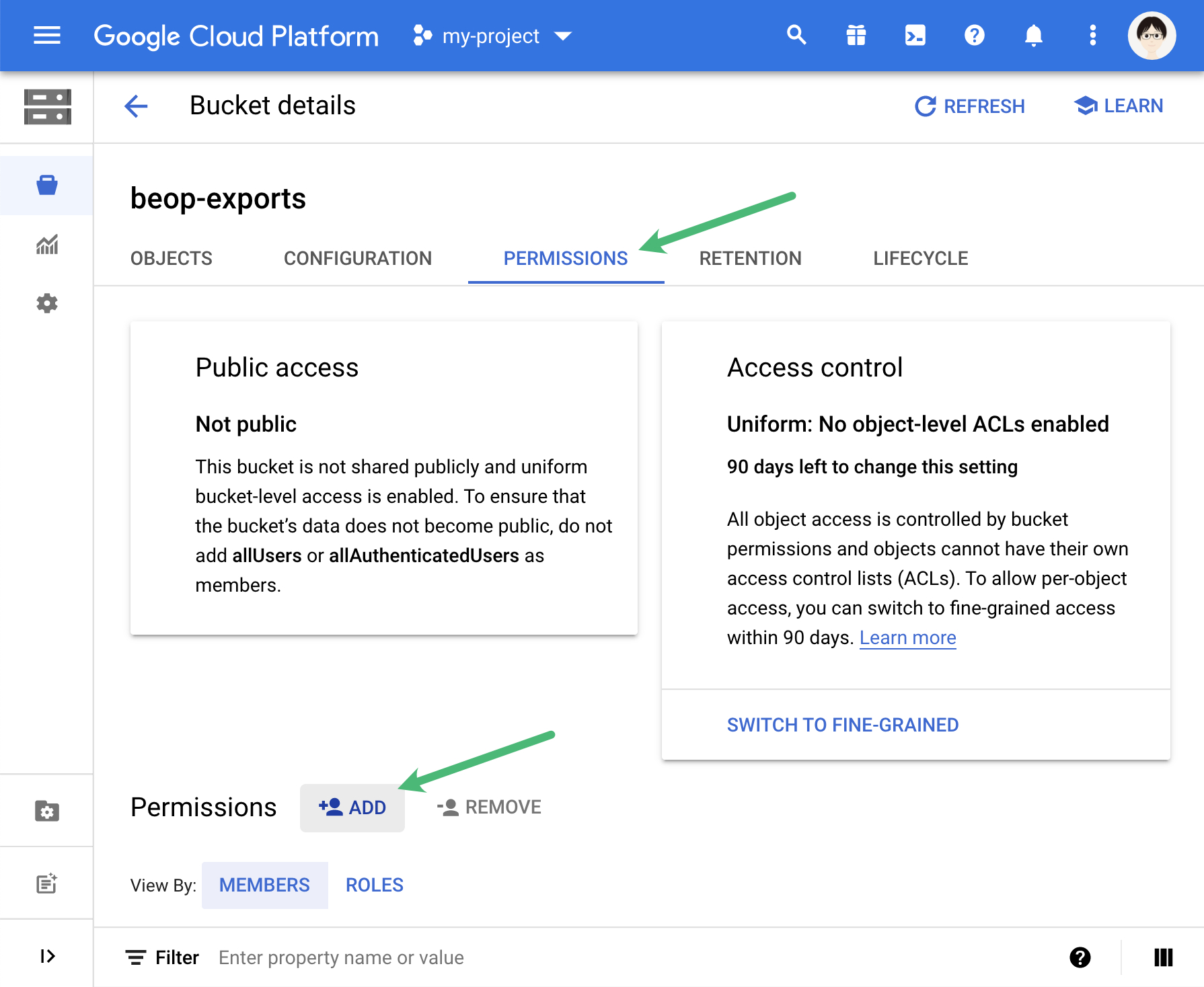
In the “Permissions” tab, click on the “Add” button at the bottom.
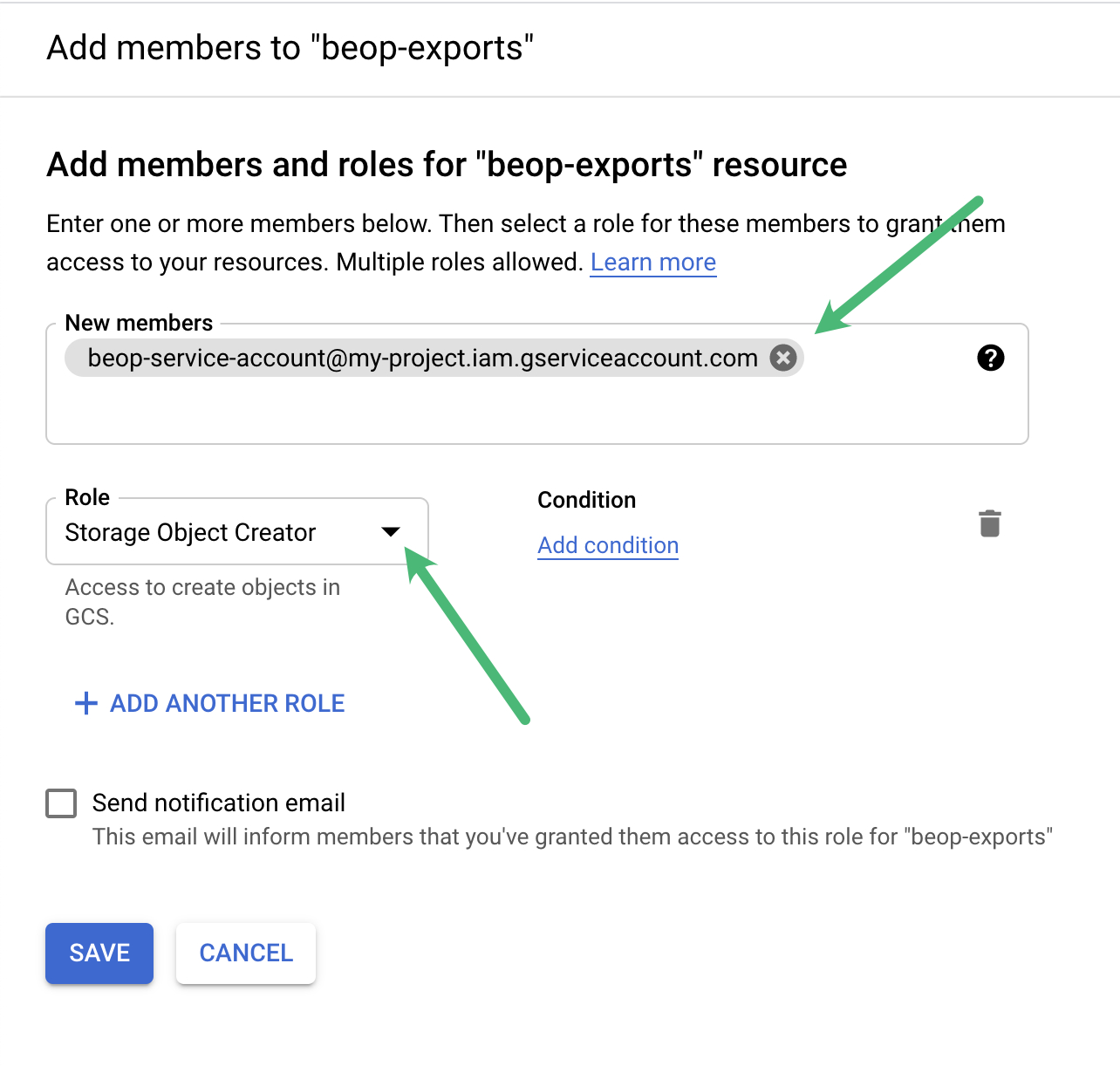
Specify the email of the service account you’ve created in step 1b.
Then choose “Storage Object Creator” as the role; it allows us to write our exported files in your bucket, and nothing more.
Step3 — Done!
You can go back to your Audience Desk™, and specify in the configuration of your exports
the bucket name (in our example,
caud-exports)the credentials key as obtained in step 1e.