Script (HTML)
🧩 HTML Script Integration
The Creative Connect™ script (creative-connect-web) is the easiest way to embed Collective Audience™ creatives into your adserver or page.
It automatically injects our creative container and handles tracking, click macros, and delivery.
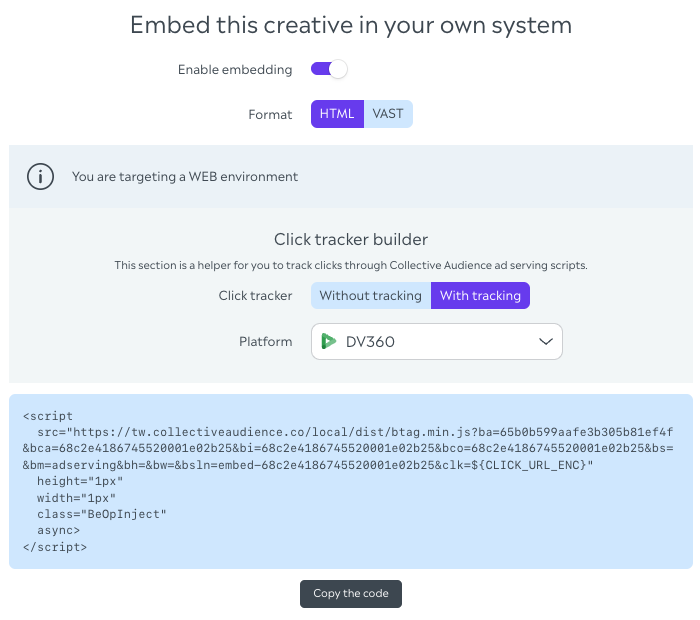
⚙️ How to Use
1. Copy your script from the Desk
From your creative’s “Embed” tab, select:
Format: HTML
Click Tracker: with or without tracking
Platform: your adserver (DV360, Adform, Xandr, etc.)
You’ll see a ready-to-use tag:
<script
  src="https://tw.collectiveaudience.co/local/dist/creative-connect-web.min.js?ba=YOUR_ACCOUNT_ID&bca=684a8d16c441f229093f2fef&bi=684a8d16c441f229093f2fef&bco=684a8d16c441f229093f2fef&bm=adserving&bsln=embed-684a8d16c441f229093f2fef&clk=${CLICK_URL_ENC}"
  class="CreativeConnect"
  async
></script>
2. Configure optional parameters
Key | Description | Example |
|---|---|---|
| CSS selector where the div is injected |
|
| Slot name |
|
| Max width / height |
|
| Mode ( |
|
| Display mode ( |
|
| Interstitial delay (ms) |
|
info: We recommend using 1×1 creative sizes for maximum flexibility and layout adaptation.
The paths /local/dist/btag.min.js and /local/dist/btag-dev.min.js remain available as aliases of creative-connect-web.min.js for existing adserver tags. Prefer creative-connect-web.min.js for new integrations.
3. Platform-specific tips
DV360 / Google Ad Manager
Use the Third-party tag integration (not HTML5).
Disable SafeFrame to ensure full creative interactivity.
Adform / Xandr / Equativ
Paste the full script directly as a 3rd party tag.
Ensure creative dimensions match the configured slot.
warning
HTML5 integrations are not supported with our script tag. Always use the 3rd party tag option.
✅ Validation
Once implemented:
Check the creative renders properly on page load.
Click tracking fires through your DSP tracking system.
Verify via browser console:
CreativeConnect loadedshould appear.