Transfers
Transfers are Desk resources you attach to reports to deliver export files automatically when a report runs.
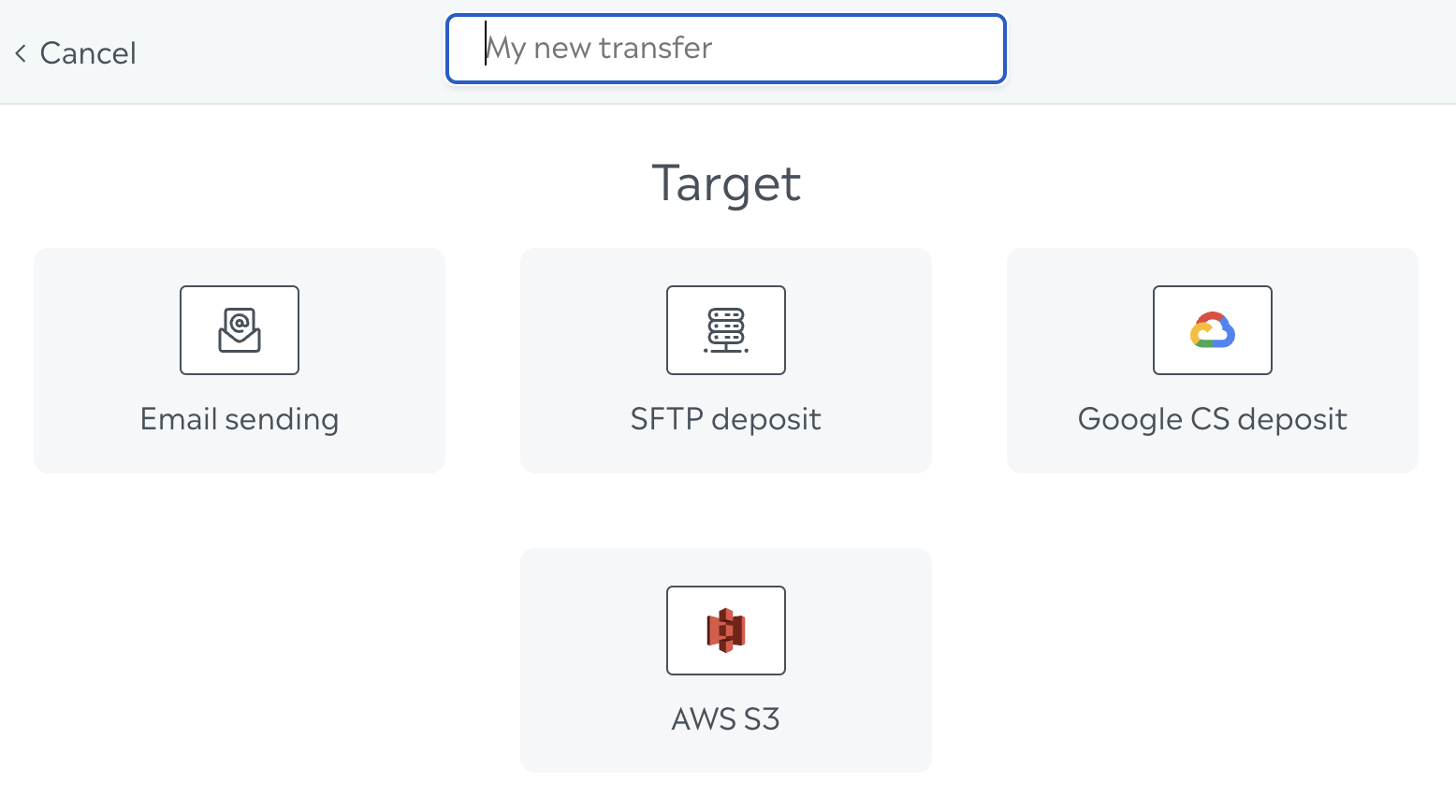
Supported destinations:
Email
SFTP
Google Cloud Storage (GCS)
AWS S3
Each transfer type has its own configuration fields. The destination type cannot be changed after the transfer is created — create a new transfer if you need a different channel.
Manage transfers
Open the transfers list from Settings → Transfers:
📍 https://desk.collectiveaudience.co/settings/transfers
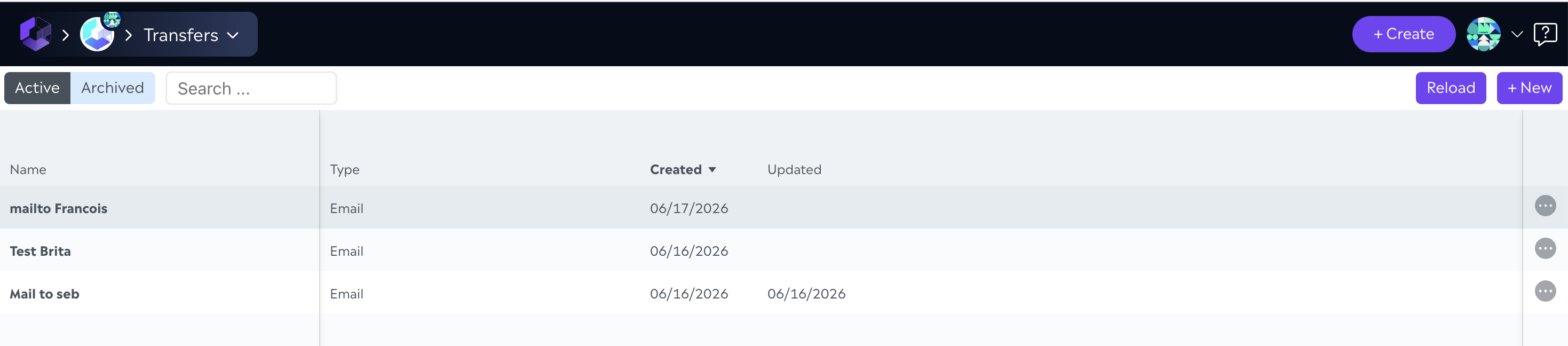
Create a transfer
You can create a transfer in two ways:
Click New on the transfers list.
Add a transfer directly from a report editor (Recipients / Transfer section).
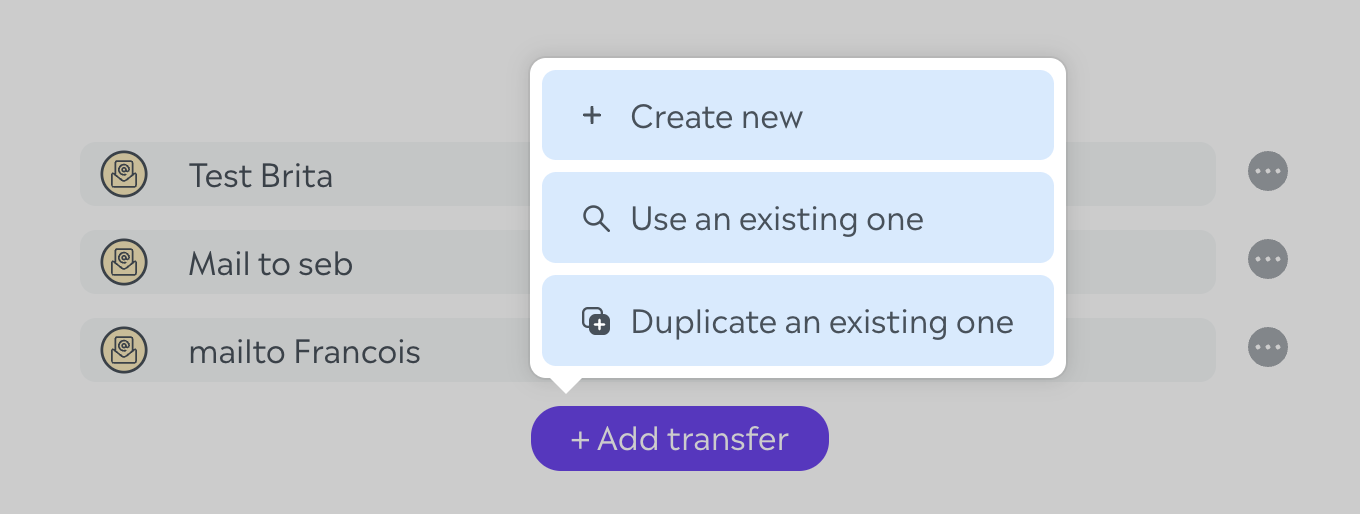
Give each transfer a clear name so you can reuse it across reports later.
Use transfers in reports
In the report editor, you can attach as many transfers as you need to a single report. Each transfer runs when the report is generated (manually or on schedule).
➡️ See Report creation for the full report workflow, including password-protected exports.
Test your configuration
After saving a transfer, use Test the settings in the transfer editor to verify connectivity and credentials before relying on it in production reports.
What recipients receive
Delivery method | What is sent |
|---|---|
SFTP, S3, GCS - Not secured report | A raw |
SFTP, S3, GCS - Secured report | A |
Email - Link | An email with a download link to the ZIP file |
Email - Attachment | The ZIP attached to the email |
If the report has Password-protect export enabled, the ZIP is password-protected. Share the password with recipients through a separate channel when possible.
Transfer types and parameters
Parameter | Description |
|---|---|
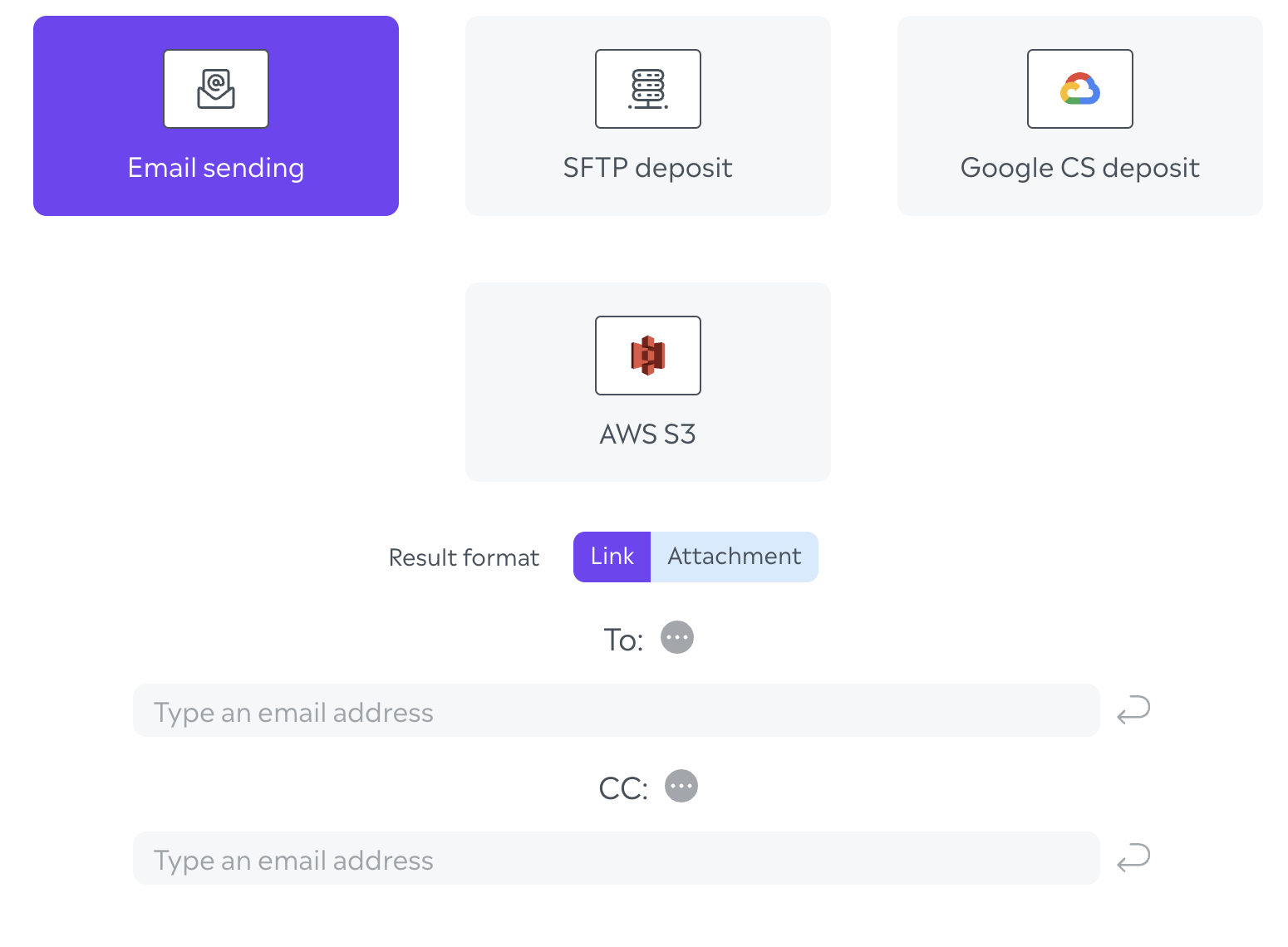
Result format | Link - download link in the email. Attachment - ZIP file attached to the email. |
To | Main recipient email addresses (one or more). |
CC | Optional copy addresses. |
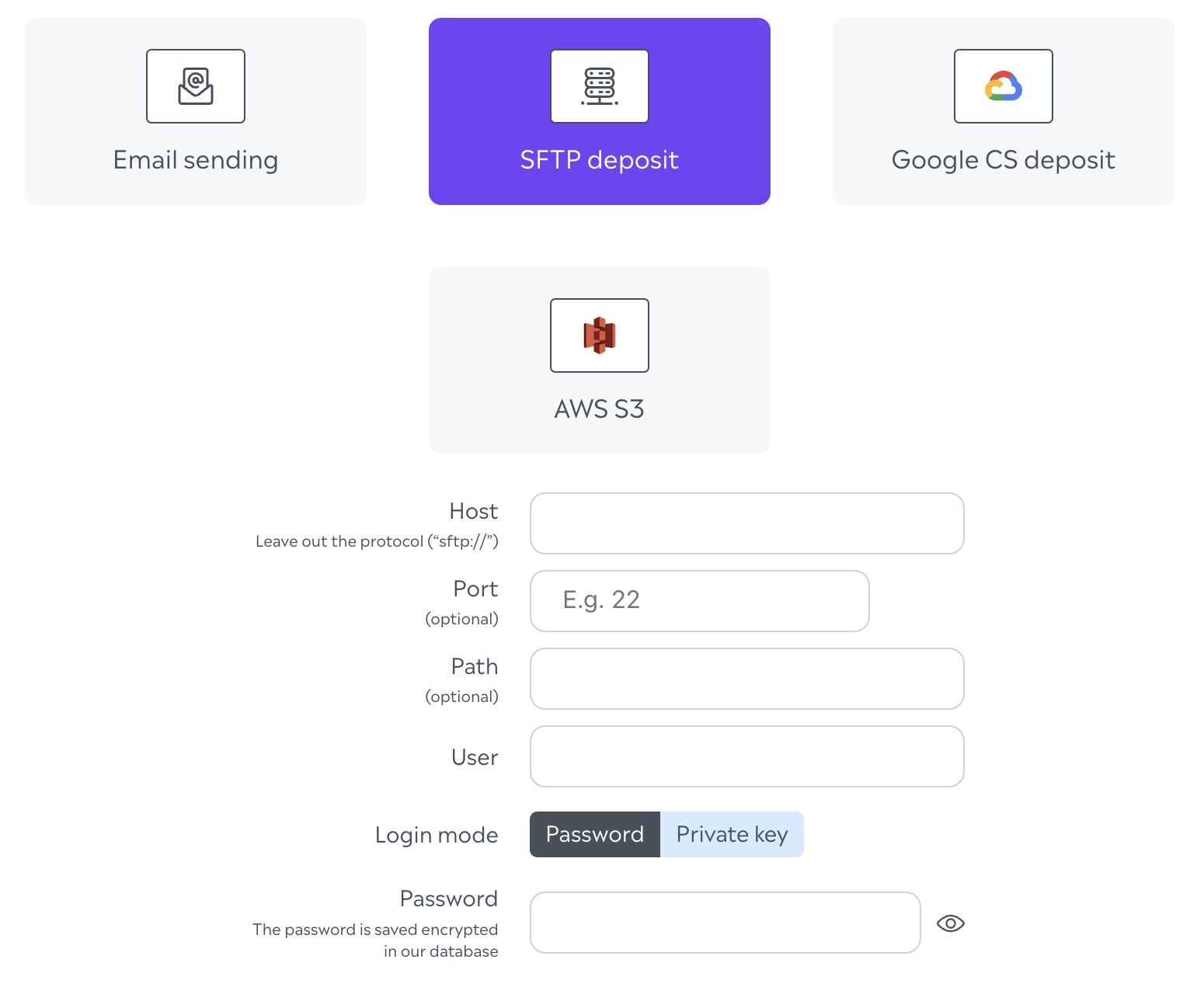
SFTP
Parameter | Description |
|---|---|
Host | SFTP server hostname. Do not include the protocol prefix ( |
Port | Optional. Defaults to the standard SFTP port if left empty (e.g. |
Path | Optional remote directory path. |
User | SFTP username. |
Login mode | Password or Private key. |
Password | Required when login mode is Password (on create). |
Private key | Required when login mode is Private key (on create). |
When editing an existing transfer, leave the password or private key field empty to keep the current secret unchanged.
Supported key algorithms (private key authentication):
ecdsa-sha2-nistp256ecdsa-sha2-nistp384ecdsa-sha2-nistp521rsa-sha2-256rsa-sha2-512
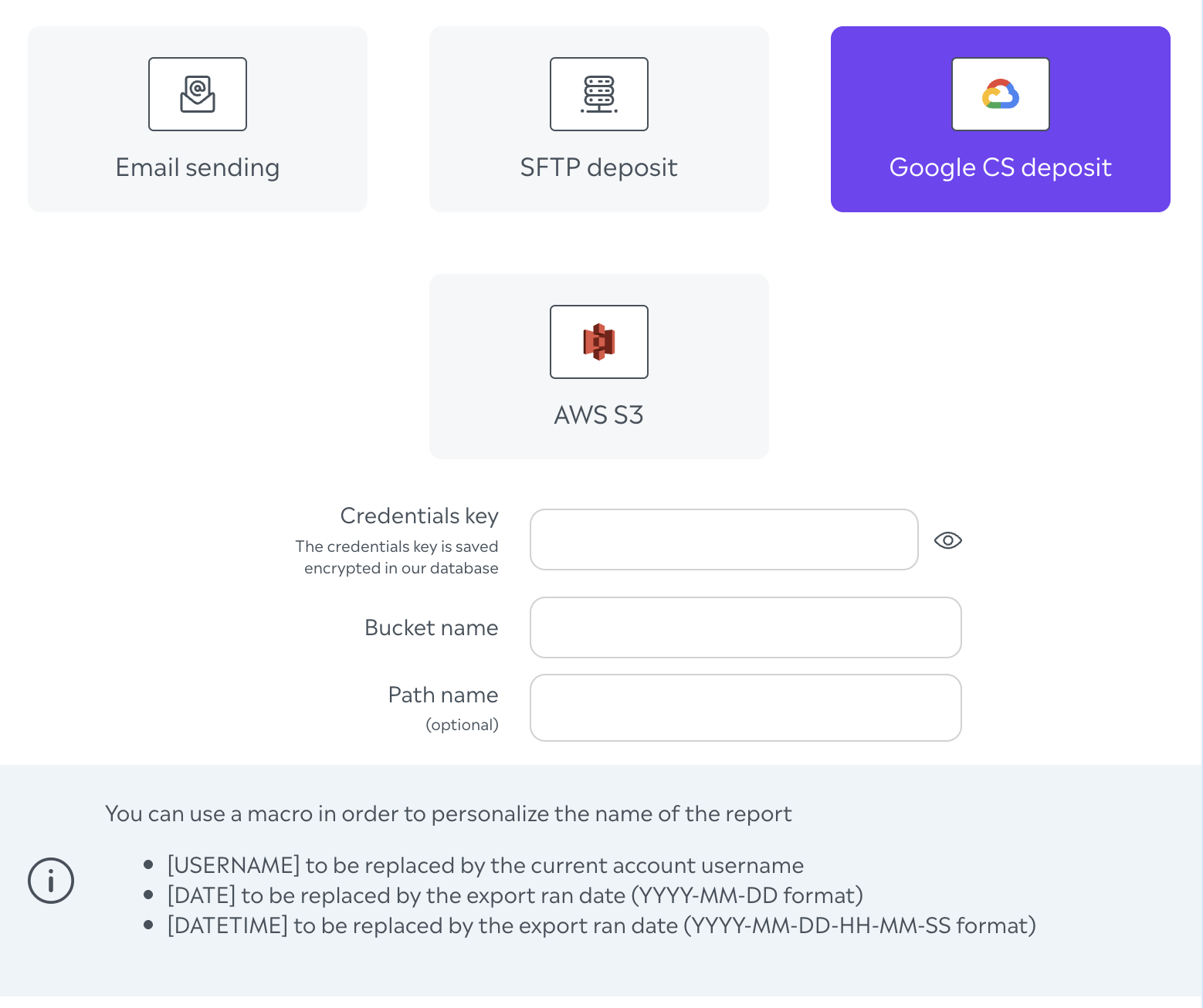
Google Cloud Storage (GCS)
Parameter | Description |
|---|---|
Credentials key | Service account JSON key. Stored encrypted; never shown again in clear text after save. Leave empty on edit to keep the existing key. |
Bucket name | Target GCS bucket. |
Path name | Optional object path prefix. Supports name macros (see below). |
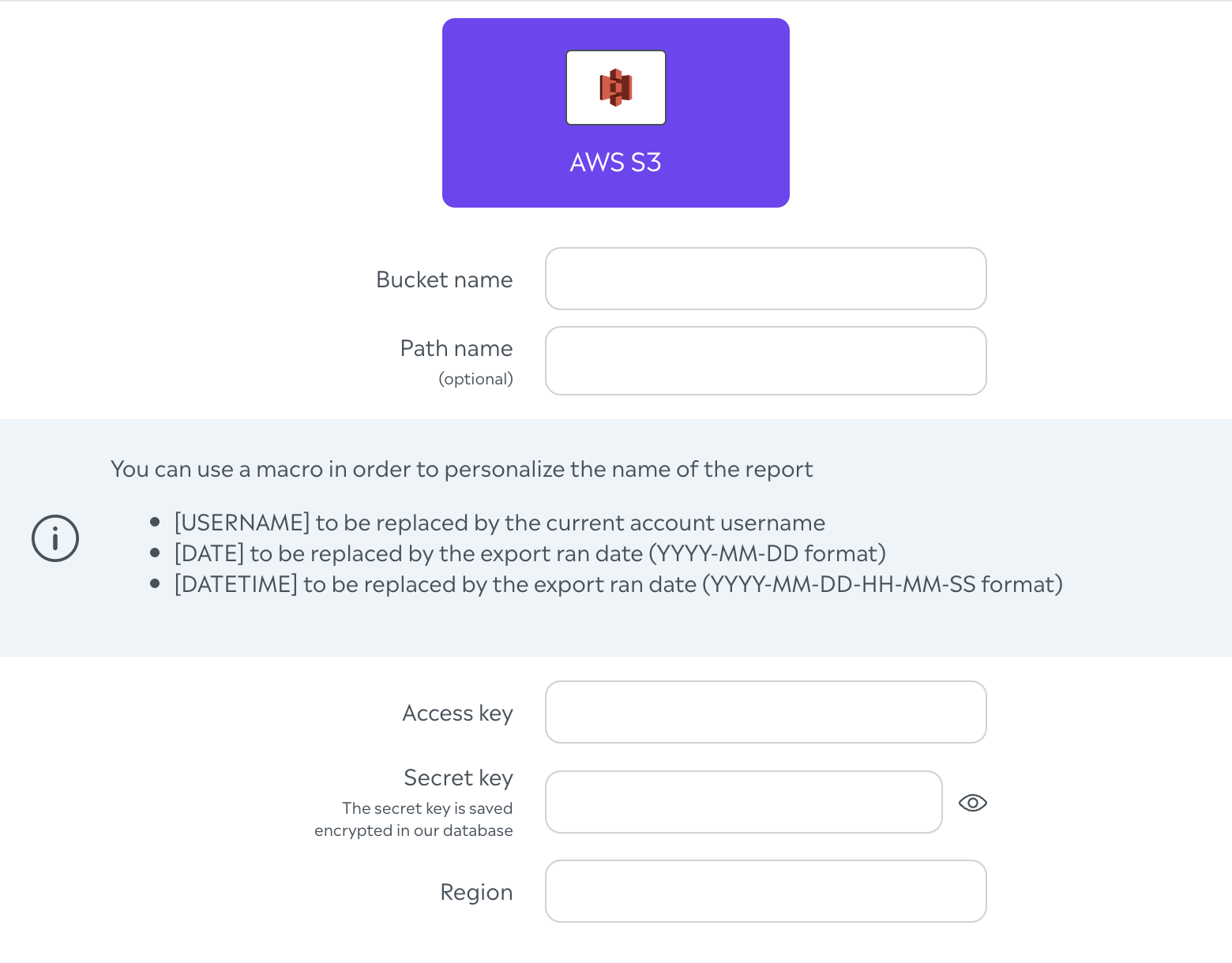
AWS S3
Parameter | Description |
|---|---|
Bucket name | Target S3 bucket. |
Path name | Optional object key prefix. Supports name macros (see below). |
Access key | AWS access key ID. |
Secret key | AWS secret access key. Stored encrypted; leave empty on edit to keep the existing secret. |
Region | AWS region for the bucket (e.g. |
Name templating
For GCS and S3 path names (and anywhere the Desk shows the macro helper), you can use placeholders in the path:
Macro | Replaced with |
|---|---|
| Current account username |
| Export run date ( |
| Export run date and time ( |
Example path: exports/[USERNAME]/[DATE]/ → exports/jane.doe/2026-06-23/
Security
Passwords, private keys, GCS credentials, and S3 secret keys are stored encrypted in Collective Audience's database. They are never displayed again in clear text in the Desk after they are saved.