Webhooks
When a native DMP or CRM integration is not available, Collective Audience™ can send participation data to any webservice in real time via webhooks.
A webhook sends data server-to-server as soon as a user interacts with a Question, Form, or Optin brick. Collective Audience™ stores the participation when allowed by your settings; the webhook runs in parallel, whether or not the data is stored.
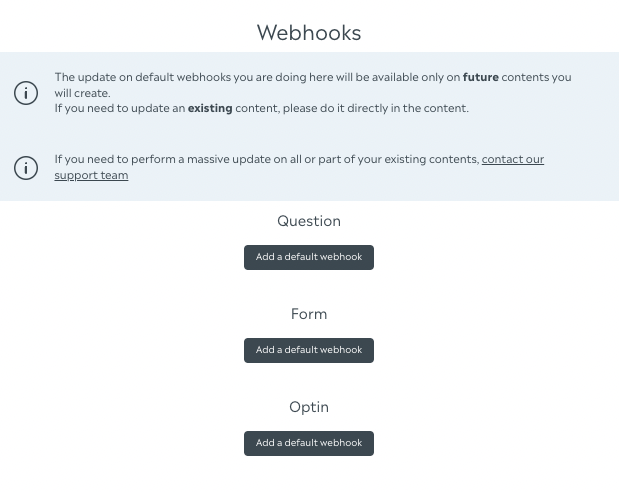
Where to configure webhooks
Webhooks can be set at two levels:
Level | Location | Applies to |
|---|---|---|
Account defaults | Account settings → Default webhooks | Future Questions, Forms, and Optins only |
Per brick | Creative editor → Form / Question / Optin → Webhooks section | That specific brick (and existing creatives if edited there) |
info: Changes in account default webhooks do not update bricks already created. Edit the brick directly inside the creative to change an existing setup.
Supported formats
Format | Brick | When the webhook fires |
|---|---|---|
Question | Question (Quiz, Survey, Personality, standalone question, etc.) | On each vote / answer ( |
Form | Form | When the user completes the form ( |
Optin | Optin | When the user opts in ( |
Each format has its own webhook editor and field mapping rules (see below).
Adding a webhook
On a Form, Question, or Optin brick
Open the creative in the dashboard.
Edit the Form, Question, or Optin brick.
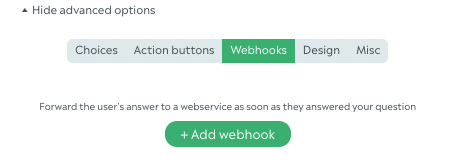
Scroll to the Webhooks section (advanced settings for Questions in Quiz / Survey / Personality).
Click Add webhook.
You can also apply a default webhook from account settings if one is configured.
Default webhooks (account settings)
In Account settings → Default webhooks, define a template per format:
Question — optional auto-add on new question bricks; supports
question_textandchoicesin Creative information.Form — optional auto-add on new form bricks.
Optin — optional auto-add on new optin bricks; includes a default email field key (
webhook_key, usuallyemail).
Enable Automatically add on brick to inject the default webhook when creating new bricks.
Setup by format
Questions
Where: Question brick → Advanced settings → Webhooks (also per-question in Quiz, Survey, and Personality editors).
Trigger: Every time a user submits an answer.
Mapping answers (choices):
On each choice of the question, set a Webhook key (in the choice editor). If empty, the choice value is sent instead.
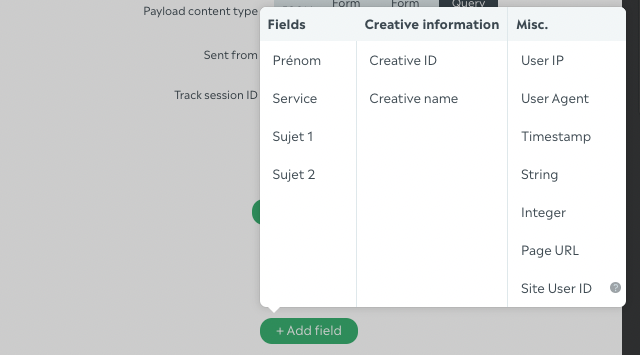
In the webhook editor, add a field with source Choices (Creative information). Map it to the parameter name your API expects (e.g.
answer,choices).
Useful Creative information sources:
Source | Payload |
|---|---|
Question text | Title of the question |
Choices | Array of webhook keys (or values) for selected choices |
Creative ID / name | Content the vote belongs to |
Example payload (form-urlencoded, additional fields + mapped choices):
{
  "choices": ["premium"],
  "ip": "203.0.113.10",
  "content-id": "64f1a2b3c4d5e6f7a8b9c0d1",
  "question-text": "Which plan do you prefer?"
}
Multiple webhooks can be attached to the same question; each fires on every vote.
Forms
Where: Form brick → Webhooks section (bottom of the form editor).
Trigger: Only when the form entry is marked completed (full submission), not on partial / in-progress saves.
Mapping form fields:
For each form field that should appear in the webhook, set a Webhook key in the field options (per field, per page/view).
For enum / checkbox / gender options, you can set a Webhook value per option (otherwise the option label/value is used).
In the webhook editor, form fields with a webhook key appear under Declarative data / field mapping. Rename the outgoing parameter if needed.
Field types without webhook keys (title, subtitle, text blocks, separators) are not sent.
Dynamic search fields support two extra keys:
Key on field | Sent as |
|---|---|
| List of selected item IDs |
| List of selected item values |
Validation: If at least one webhook is defined, every mappable field must have a non-empty webhook key (and enum options must have webhook values where required). An email field is required when webhooks are enabled.
Example payload after completion:
{
  "email": "[email protected]",
  "firstname": "Jane",
  "newsletter": ["yes"],
  "session_id": "abc-123",
  "ip": "203.0.113.10"
}
Optins
Where: Optin brick → Webhooks section.
Trigger: When the user accepts the opt-in (value: true).
Email mapping:
Set the Webhook key for email on the optin brick (e.g.
emailorEMAIL). The user's email is always sent under that key.Default account settings can pre-fill this key for new optins.
Useful Creative information sources:
Source | Payload |
|---|---|
Optin ID | Optin brick identifier |
Optin name | Optin brick name |
Creative ID / name | Parent content |
Example payload:
{
  "email": "[email protected]",
  "optin-id": "64f1a2b3c4d5e6f7a8b9c0d1",
  "optin-name": "Newsletter signup"
}
Source setup
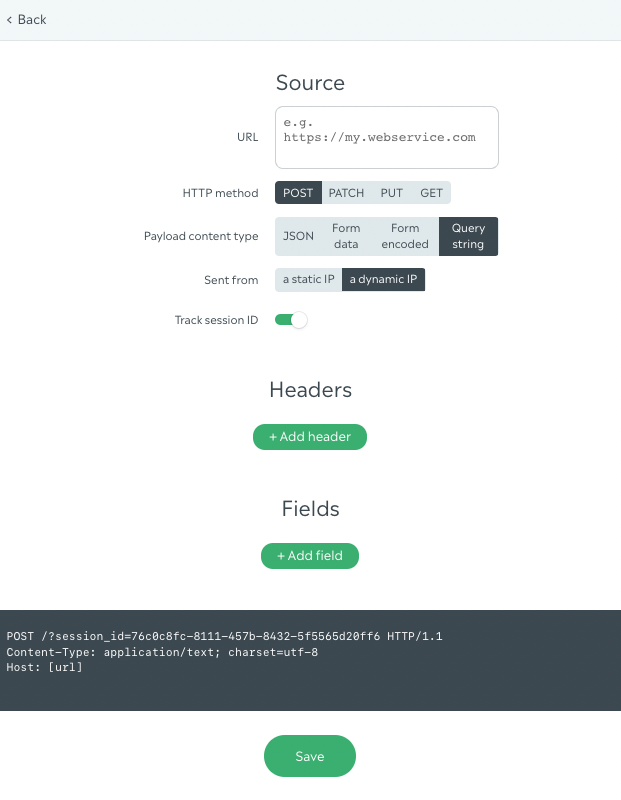
Webservice URL
URL of the endpoint to call. Must start with http:// or https://.

HTTP method
Supported: POST, GET, PUT, PATCH. GET requests always send data as query string parameters.

Content type (payload format)
Format | Description |
|---|---|
JSON |
|
Form URL encoded |
|
Form data |
|
Query string | Parameters appended to the URL (also forced for GET) |

Sender (static vs dynamic IP)
Option | Behavior |
|---|---|
Dynamic IP (default) | Request goes directly to your URL from Collective Audience™ infrastructure |
Static IP ( | Request is proxied through Collective Audience™ router so your firewall can allowlist one IP (extra cost) |
Use Proxy to URL webhook type with static IP. Use Post action for direct calls (dynamic IP).

Session ID
Each session has a session_id to correlate multiple interactions in the same visit (e.g. several questions in one content). It is not used for ad retargeting.
Toggle Do not track session ID to exclude it from the payload.

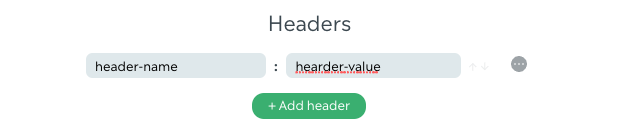
Headers
Add any custom headers your API expects (auth tokens, content types, etc.).
Fields
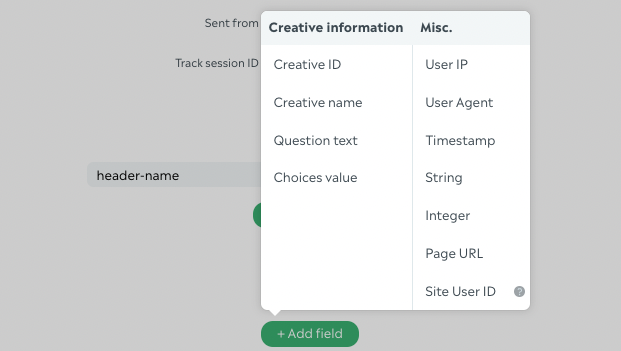
Map Collective Audience™ data to your API parameter names.
Categories
Creative information — content metadata and format-specific sources (question text, choices, optin id, etc.)
Miscellaneous — IP, user agent, timestamp, free string/integer, page URL, site user ID (→ site-user-id)
Timestamp formats
When using the Timestamp source, choose:
Unix timestamp (int)
ISO 8601
YYYY-MM-DD HH:MM:SSYYYY-MM-DD
Site user ID
If the SDK login hook (→ sdk-login-hook) provides a site user ID, add a Site user ID field in Miscellaneous data to forward it to your API.
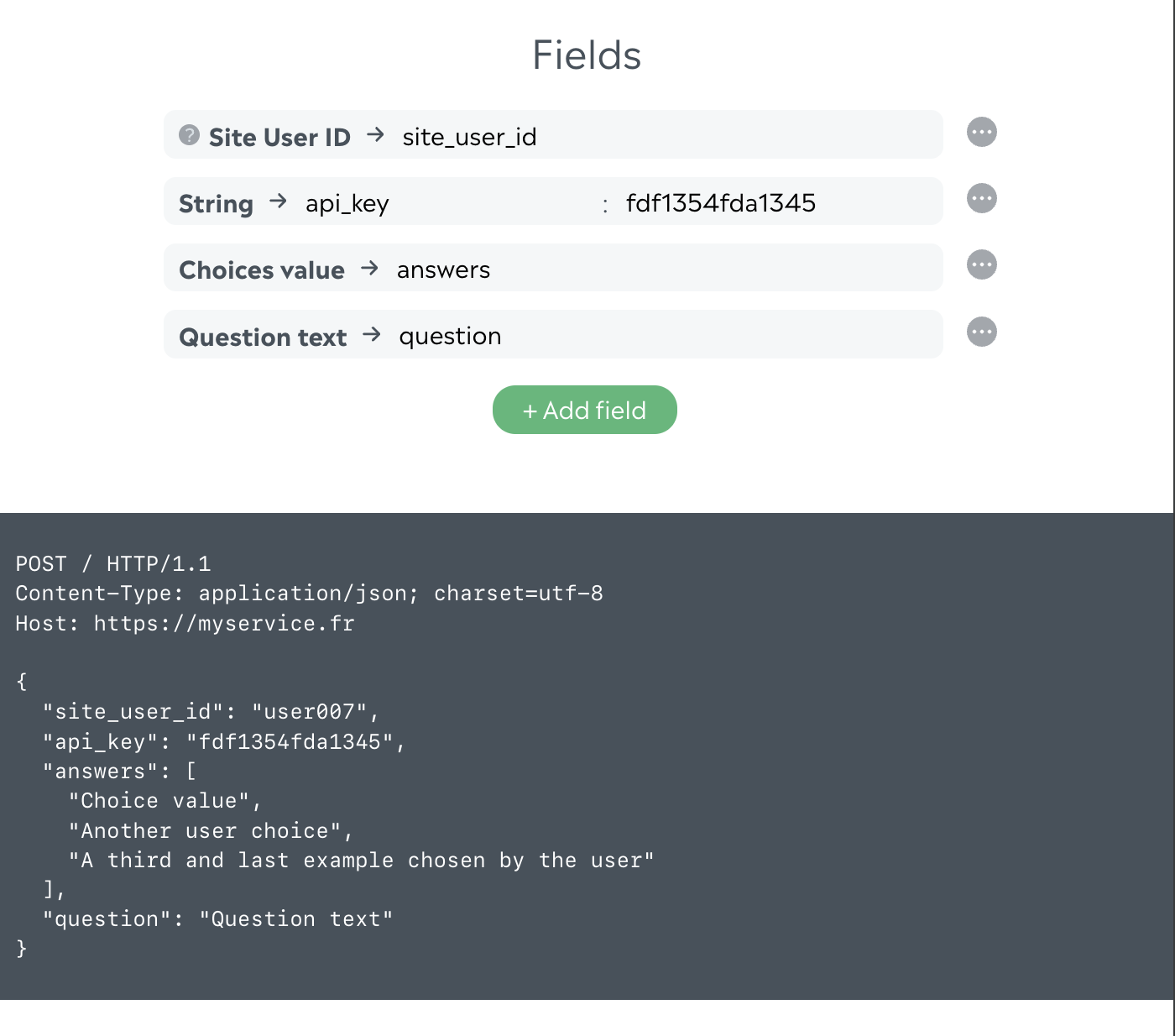
Preview
The preview panel shows the HTTP call built from your URL, method, headers, and field mapping.
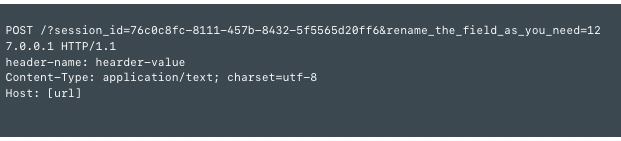
Test with the creative preview: submit a vote, form, or opt-in and check your endpoint or Collective Audience™ webhook logs.
Related integrations
Push data to Zapier (→ zapier) — use a Zapier Catch Hook URL as the webhook URL
Site user ID (→ site-user-id) — pass your own user identifier in webhook payloads
SDK login hook (→ sdk-login-hook) — required to populate site user ID
Feature access
Webhooks are available per account. Contact Collective Audience™ support if the Webhooks section is not visible in your dashboard.